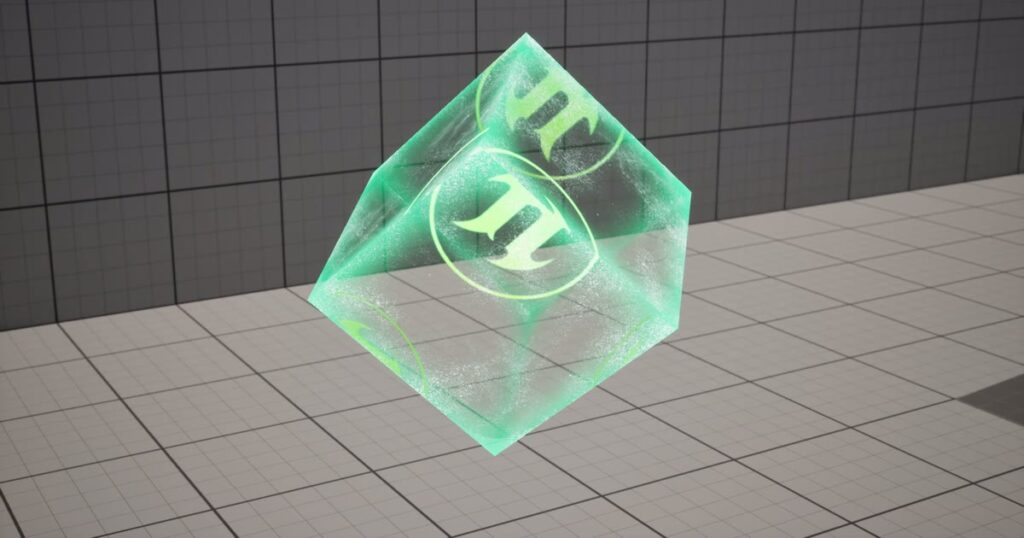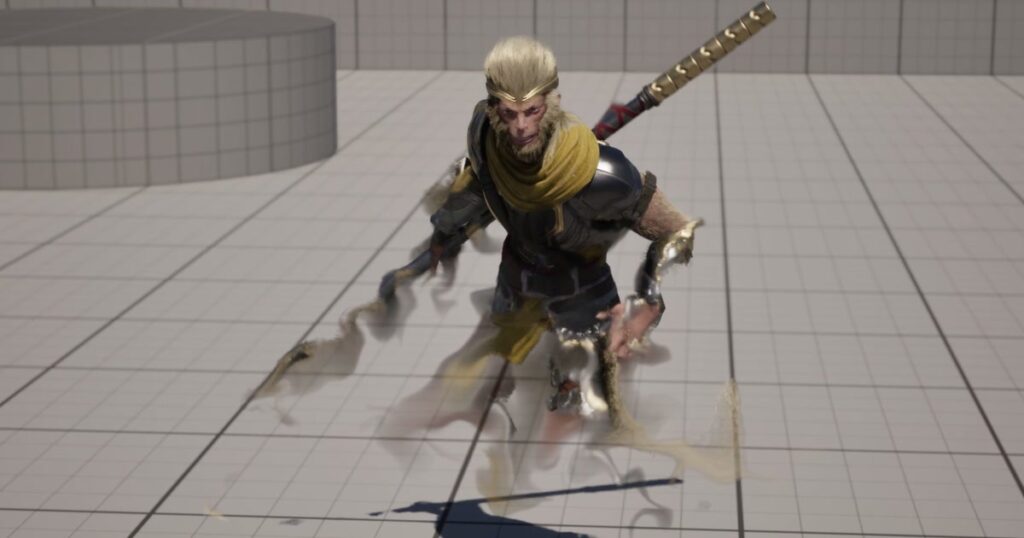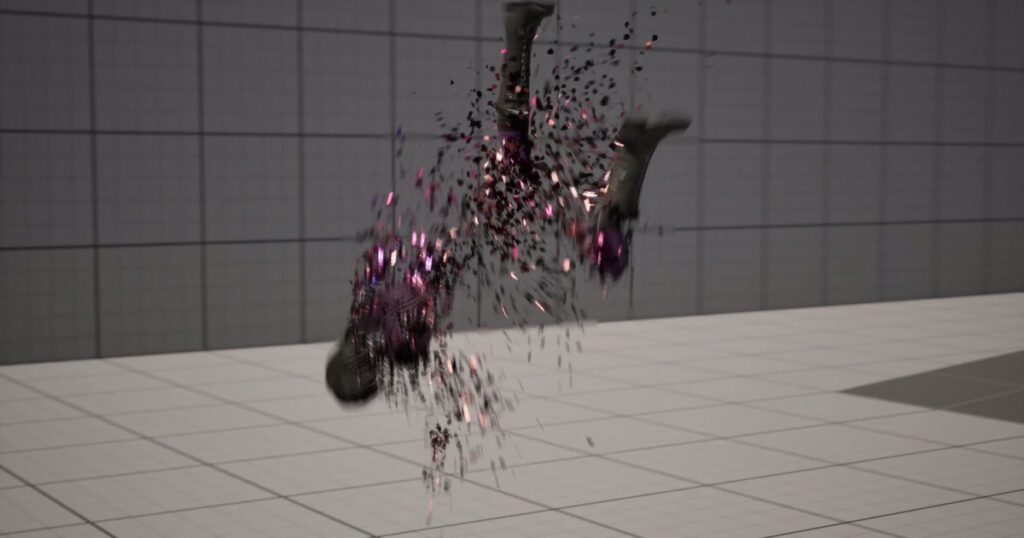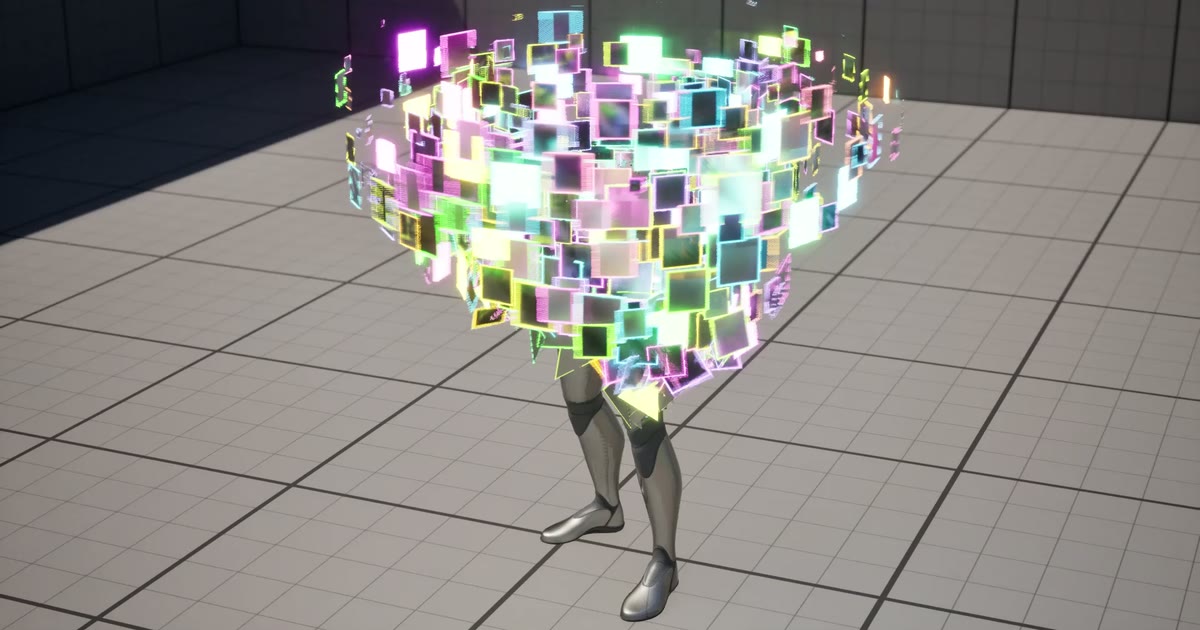
Effects where a model breaks apart into its polygons have been around since older games like FF9, and back then they were most likely implemented by programmers making full use of shaders.
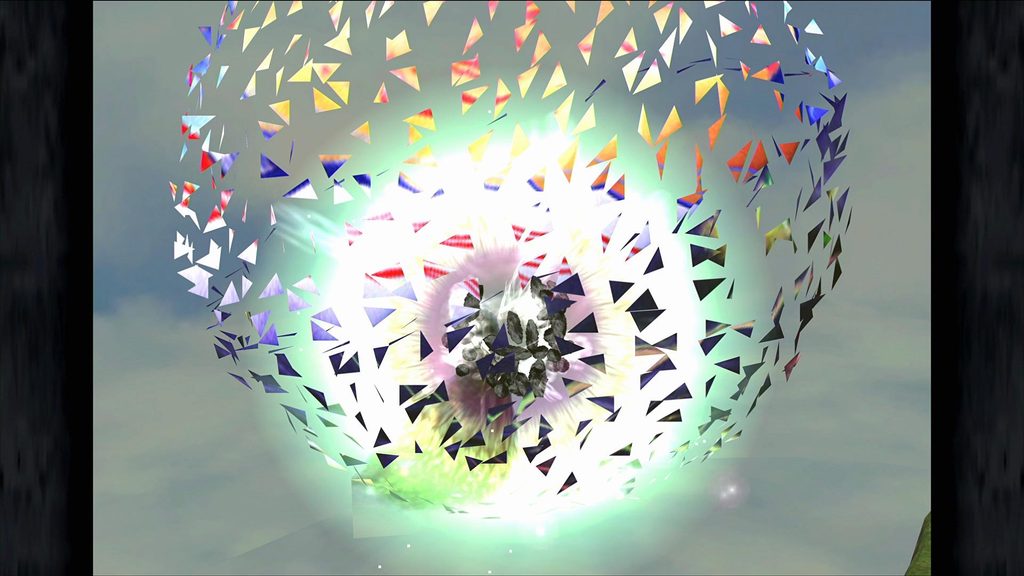
To control polygon decomposition and deformation in a shader, you can implement it in the Geometry Shader stage, which works even in general-purpose game engines like Unity. However, some graphics pipelines don’t support it, so it isn’t something you can use casually.
And unfortunately, UE5 doesn’t support Geometry Shaders.
↓ A polygon deformation I made with a Geometry Shader in Unity a while back
But UE5 has Niagara!
By making full use of Niagara’s features, you can work around the drawbacks of a shader-based approach and create all kinds of interesting polygon decomposition effects.
Specifically, we recreate the mesh with particles, which turns “controlling polygons” into “controlling particles.”
In this article, I’ll walk you through the basics of how that works, step by step!
Once you understand these basics, all you have to do is change how the particles are controlled (how they move), and you can apply it to various decomposition and deformation effects. I’d really love for you to master this as a foundation for expanding your range of expression!
Building the Base System: Replacing the Mesh with Particles
First, let’s lay the groundwork for replacing the character mesh with “a collection of particles.”
Step 1: Get the Mesh’s Total Polygon Count and Spawn Particles
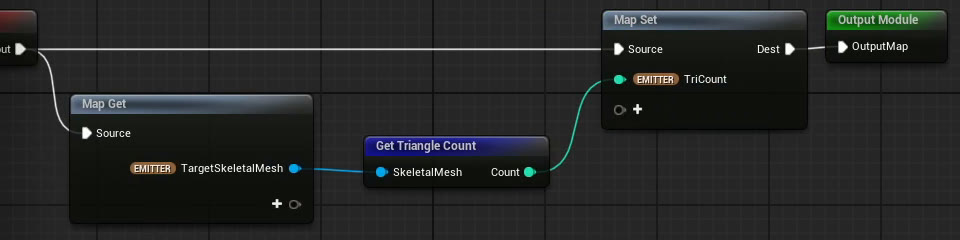
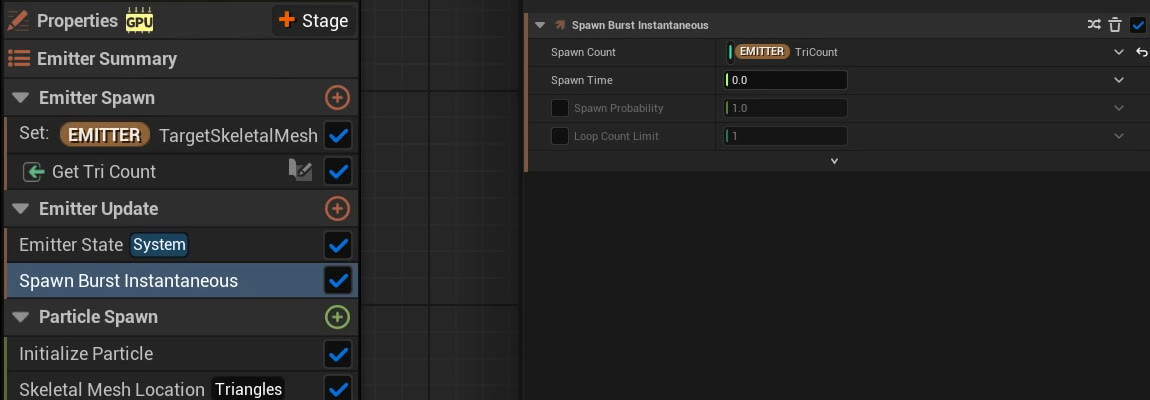
If the target mesh is made of “10,000 polygons,” we spawn exactly “10,000 particles.” That’s why we basically use a GPU Emitter.
Using a Niagara Scratch Pad, we get the exact polygon count (Triangle Count) of the target mesh and plug it straight in as the number of particles to spawn (the Count of Spawn Burst Instantaneous).
Step 2: Assign Exactly One Particle to Each Polygon
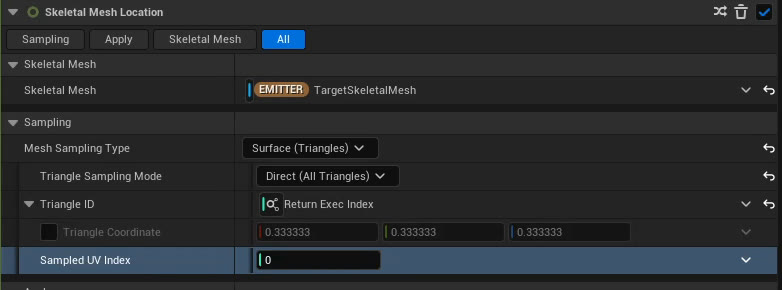
Next, we place particles on every polygon without any duplicates: “particle 0 goes on polygon 0, particle 1 on polygon 1…” and so on. Change the sampling mode of Skeletal Mesh Location to “Direct,” and assign the particle’s sequential number, Execution Index, directly to the polygon number, Triangle ID.
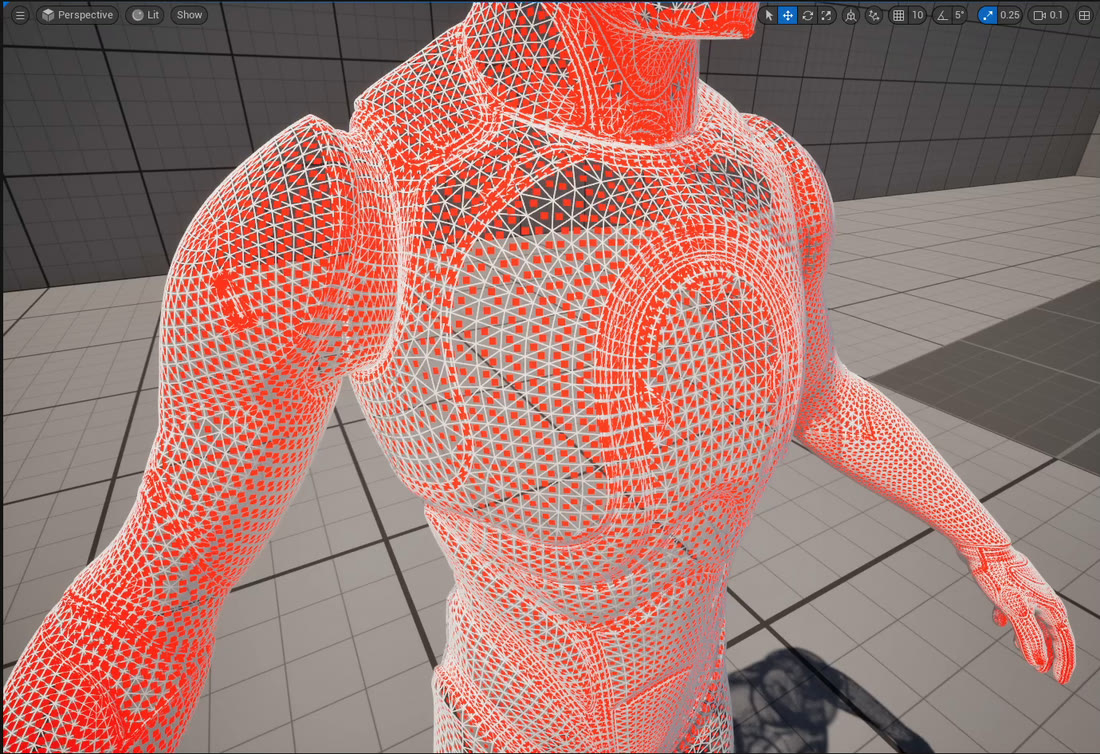
Now the particles are placed on the surface of the mesh.
But as you can see in the image, at this stage they’re just “square sprites” stuck to the surface, with gaps everywhere. Next, we’ll deform them into “triangles” that exactly match the original mesh.
Recreating the Shape: Deforming Square Sprites into “Triangles” with WPO
To change the shape of the particles, we use a material feature called WPO (World Position Offset). It’s a powerful feature that lets you freely move a model’s vertex positions from the material side.
Step 3: Calculate the Vectors to “the Polygon’s 3 Vertices” in Niagara
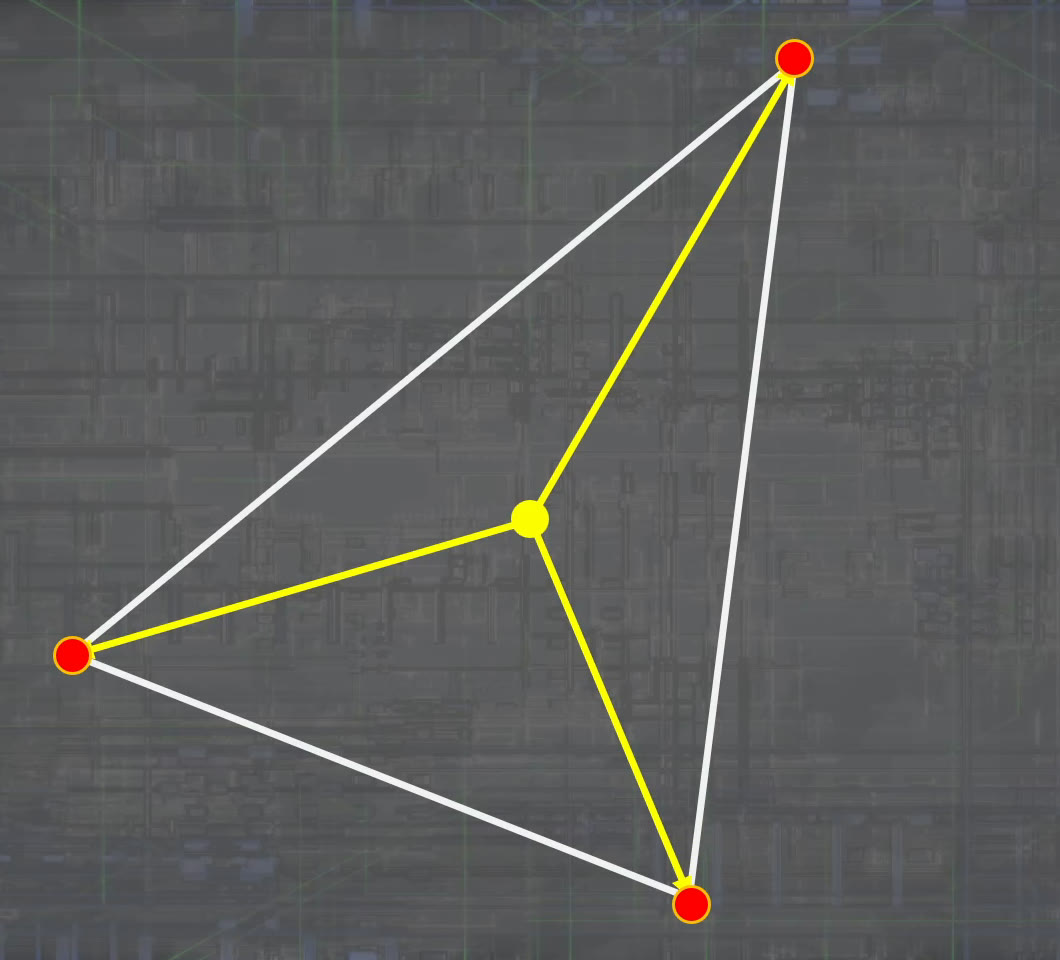
Inside a Niagara Scratch Pad, we get “the absolute positions of the 3 vertices” of the polygon (triangle) the particle is attached to.
Then, by subtraction, we calculate the vectors from “the particle’s current center position” to “the 3 vertices” (which direction, and how far, to move to reach each vertex).
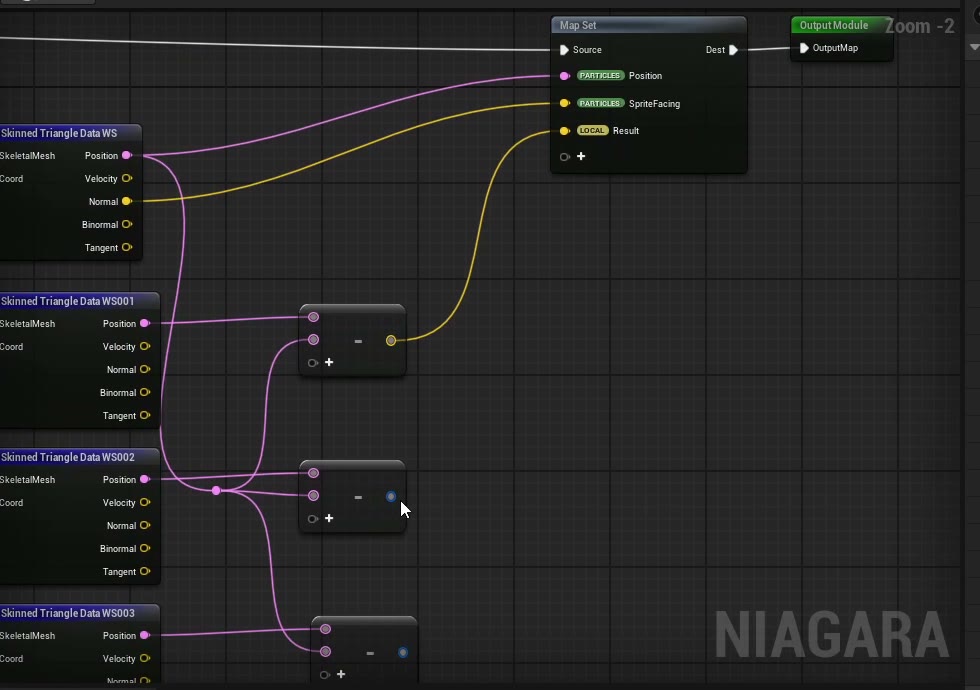
Step 4: Send the Values to the Material with Dynamic Parameters
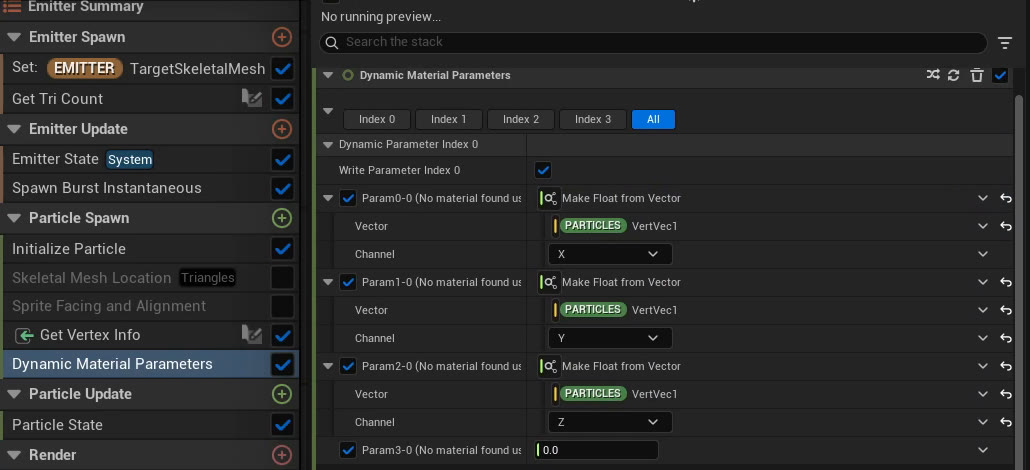
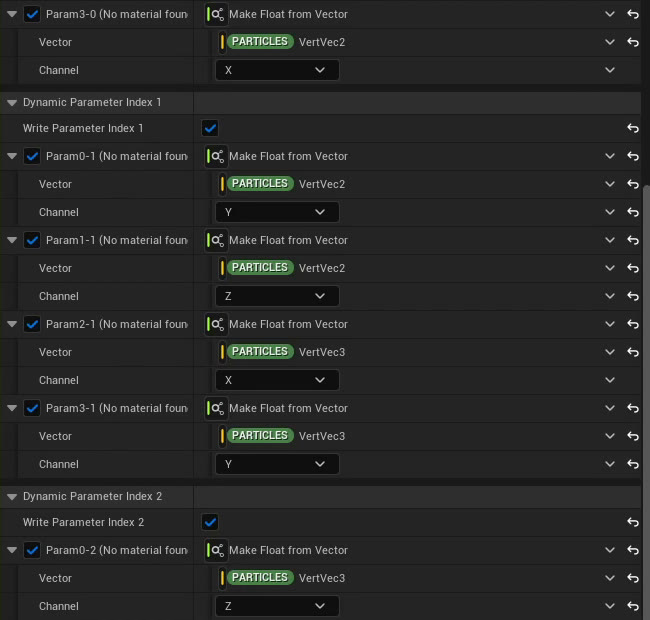
We send the 3 calculated vectors to the material using Dynamic Material Parameters. Now the material knows “which direction to move each vertex to form a triangle.”
Step 5: Move the Vertices (WPO) Using UVs in the Material
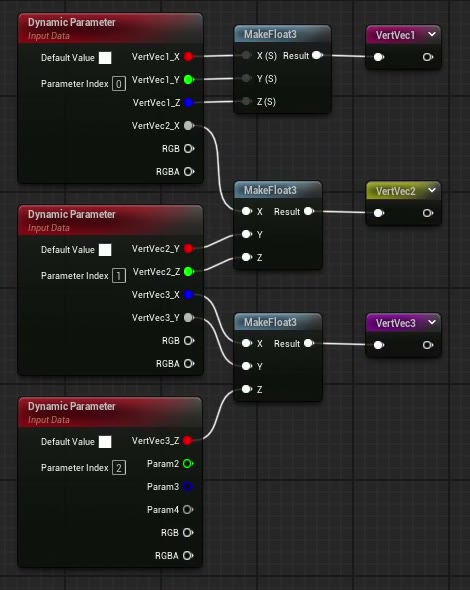
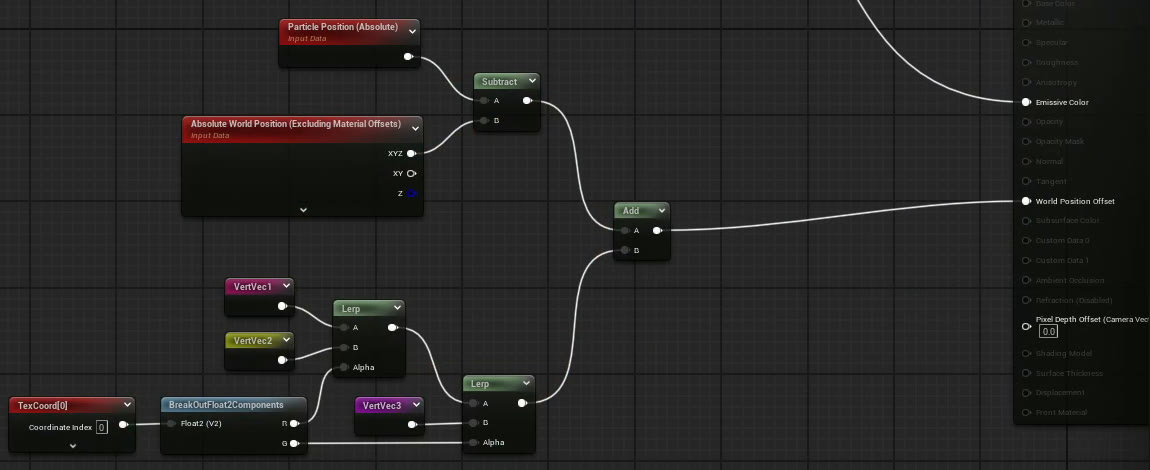
In the material, we use the received vectors to move the square’s vertices.
We use the UV coordinates (TexCoord) to decide “which corner” of the square sprite moves along “which vector.”
- If U (horizontal) is 0, it’s the left vertex; if it’s 1, it’s the right vertex.
- If V (vertical) is 1, it’s the bottom vertex.
By building the math with Lerp (linear interpolation) like this, we can “align the square’s top 2 vertices with the base of the triangle, and squeeze the bottom 2 vertices together into one point to match the triangle’s remaining vertex.”
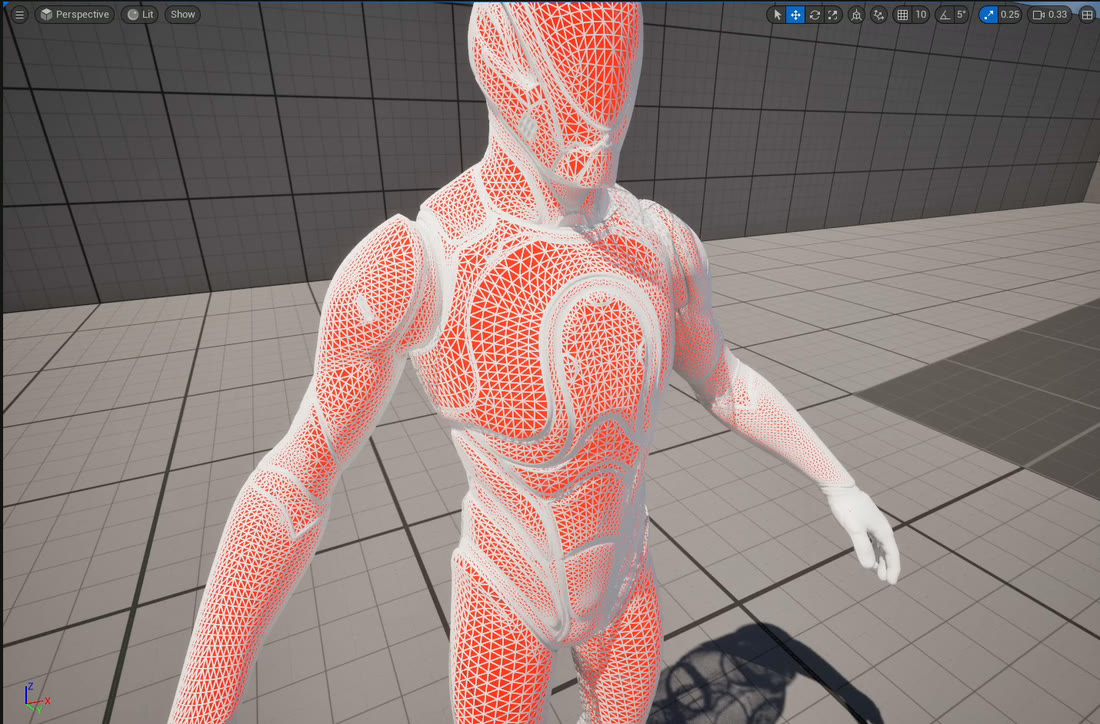
Plug this result into WPO, and… the square sprites are forced into triangles and line up perfectly with the shape of the original character mesh!
Got the Basics! …But How Do You Finish It from Here?
We’ve now “recreated the shape”! Every polygon has been replaced with a particle. Once you have this state, all kinds of effects become possible just by deciding how to move the particles.
…However, as you can see from the image in Step 5, right now it’s just “a bunch of bright red triangles.”
To turn this into a real, finished effect, you need to get past two big hurdles:
- Recreating the “look”
Just matching the shape loses the original character’s textures and smooth shading (normals), so it ends up looking different from the original. How do you copy the texture and normal information onto the particles to bring it closer to the original character’s look?
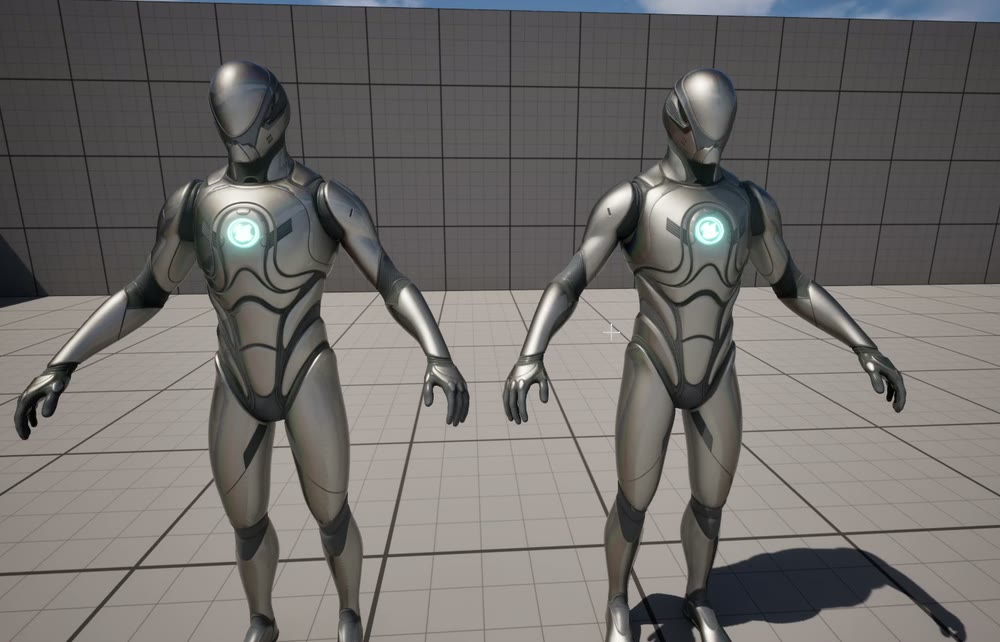
- Turning it into cool “animation”
Once the look is recreated, it’s time to make it move. How do you control it as an actual effect, like shattering apart randomly, or deforming into square digital noise as it disappears?
For Those Who Want to Learn Practical “Look Recreation” and “Two Example Effects”!
If this article made you think, “I want to use this base system in my own project!” or “I want to take this further and build a decomposition effect that’s actually good enough for a game, all the way to the end!”…
In my online course on Coloso, I cover everything hands-on, from a more detailed explanation of the basics to what comes next: from “recreating the look” all the way to “building two example effects”!
🔽 Coloso course: Advanced VFX with Niagara × Material — Learn from How It Works
https://coloso.global/en/products/vfxartist-heyyo-us
(The content of this article is covered in detail in Lessons 21–24 of the course.)
In the course, you’ll learn not only exactly how to build the nodes for the “complex vector math in the Scratch Pad” I touched on here, but also a highly practical workflow for passing normals and textures to the material via render targets to “create the same look as the original mesh.”
Then, building on that system, we’ll create
- Example 1: A simple effect where the polygons break apart and scatter
- Example 2: An effect that deforms into squares and spins as it fades away digitally
—two effects you can put to use in production right away, built together step by step!
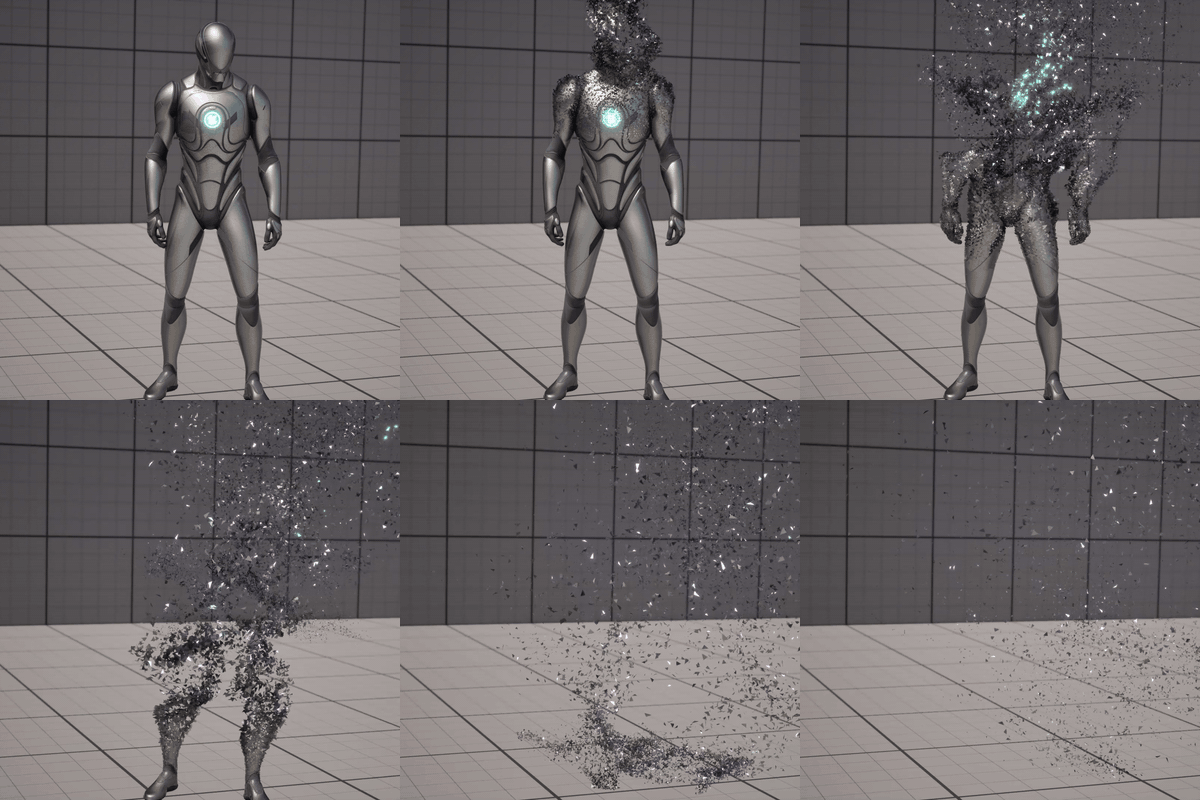
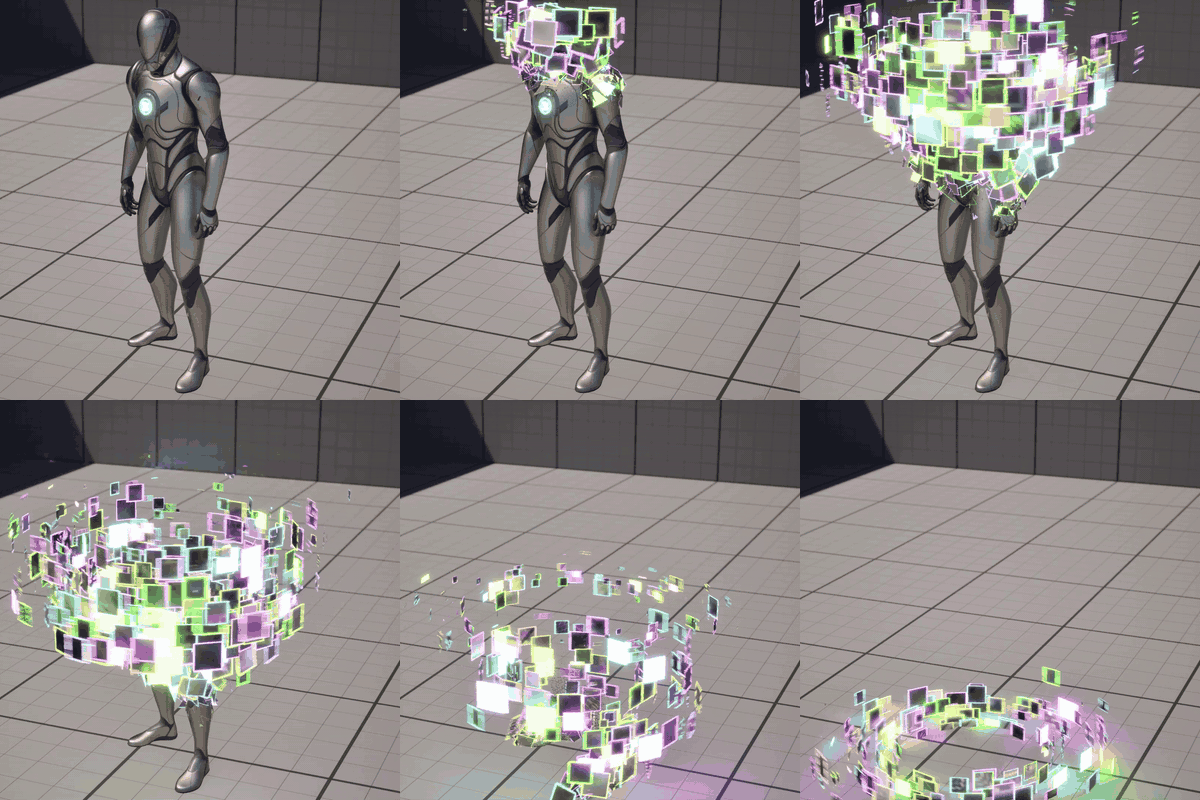
For Those Who “Just Want to Look Inside the Finished Data!”
“I don’t have time to sit through a whole course!” “If I can see the finished data, I can figure out how the nodes are built myself!”
For anyone in that camp, I also sell the project data on its own on Gumroad.
🔽 Gumroad: Project Data
https://heyyohanashima.gumroad.com/l/qmmmk
If you want to step beyond ordinary particle effects, I hope you’ll experience this advanced, highly adaptable system through the course or the project data!