Have you ever seen an effect—like a cyberpunk hologram UI or an icy floor—where “it’s just a single, paper-thin plane (polygon), yet when you peer into it, it looks like there’s space stretching far back inside”?
You’ve probably wondered how that’s made. It’s not a 3D model with an actual box built deep inside—it’s an optical illusion created with a material technique called “Parallax Offset”!
There are several kinds of Parallax Offset techniques, ranging from simple to complex.
In this article, I’ll walk you step by step through the simplest one: building a material that adds depth to a single flat plane!
Hands-On! Let’s Build the Parallax Offset Nodes
It may look tricky at first glance, but the node setup itself is really simple.
Create a material, grab any texture you like (a logo, a pattern, etc.), and let’s build it together!
Step 1: Get the Camera Direction (Camera Vector)
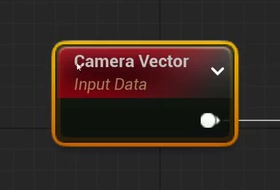
First, we get information about “from what angle the player (camera) is looking at the mesh.”
Right-click in the Material Editor and add a CameraVector node.
Step 2: Transform the Space (World → Tangent)
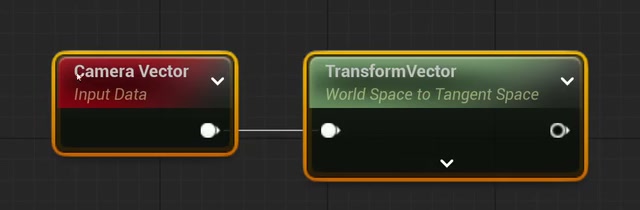
Next, we convert that camera direction into “a space based on the mesh’s surface.” This is the most important part.
Add a TransformVector node and change its settings in the Details panel as follows:
- Source: World Space
- Destination: Tangent Space
Then connect the CameraVector from the previous step into this TransformVector.
Step 3: Extract the XY Components and Adjust the Depth
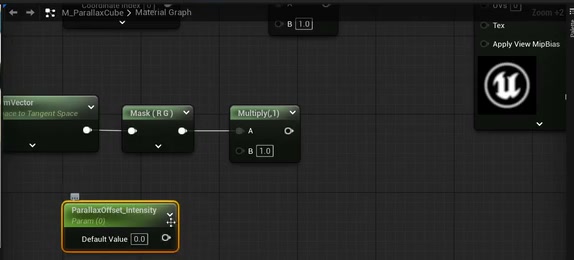
Now we take only the parts we need from the transformed vector.
Add a ComponentMask node and check only “R” and “G” in the Details panel (this extracts just the X and Y axes).
You could add these values as they are, but to make the depth adjustable, multiply them by a value with a Multiply node. Try something like -0.1. This value becomes the depth (the amount of offset).
Step 4: Add It to the UVs and Plug It into the Texture!
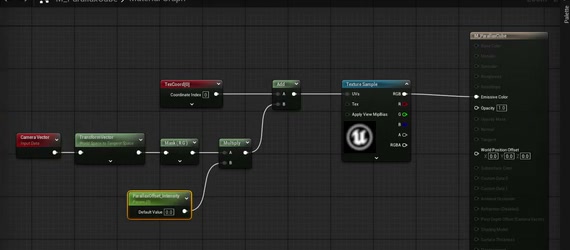
Finally, use an Add node to add the value we just calculated to the texture’s original UVs (the TexCoord node).
Plug that into the texture’s UV pin and… you’re done!
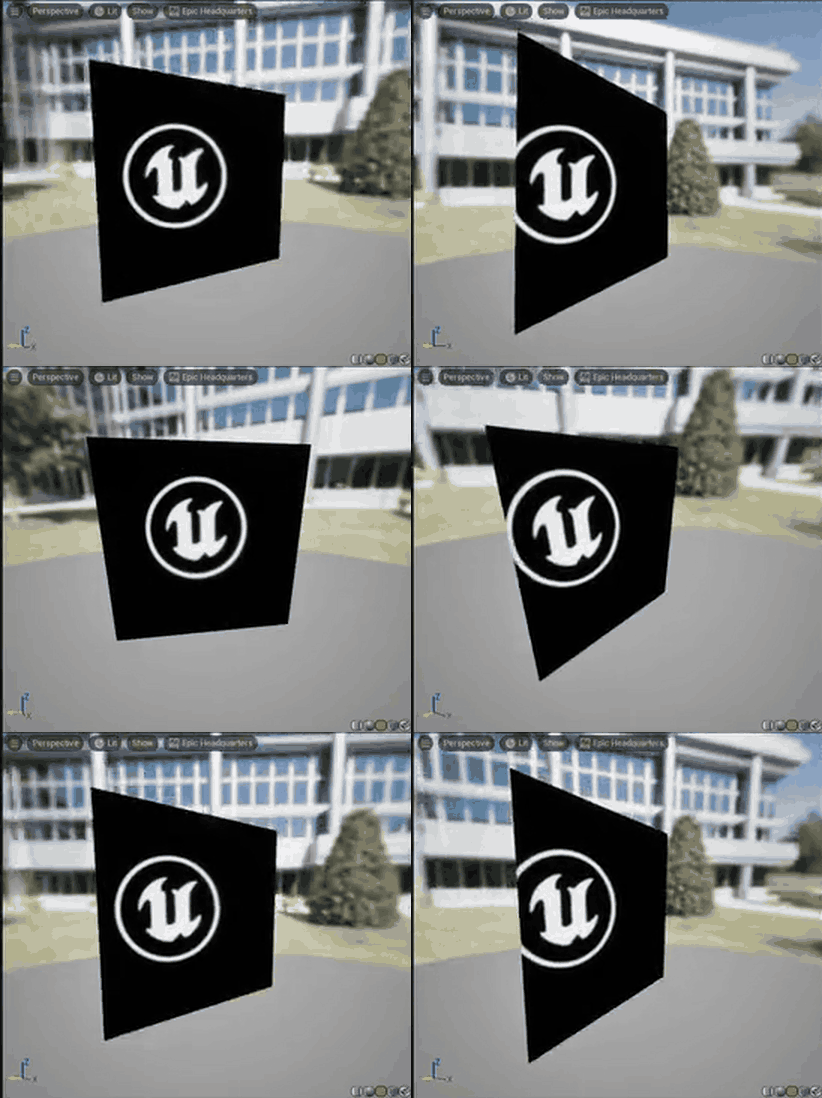
How does it look?
Try looking at the plane from an angle in the preview viewport. The texture slides around as the camera angle changes, and it should look just as if the texture exists somewhere behind the plane!
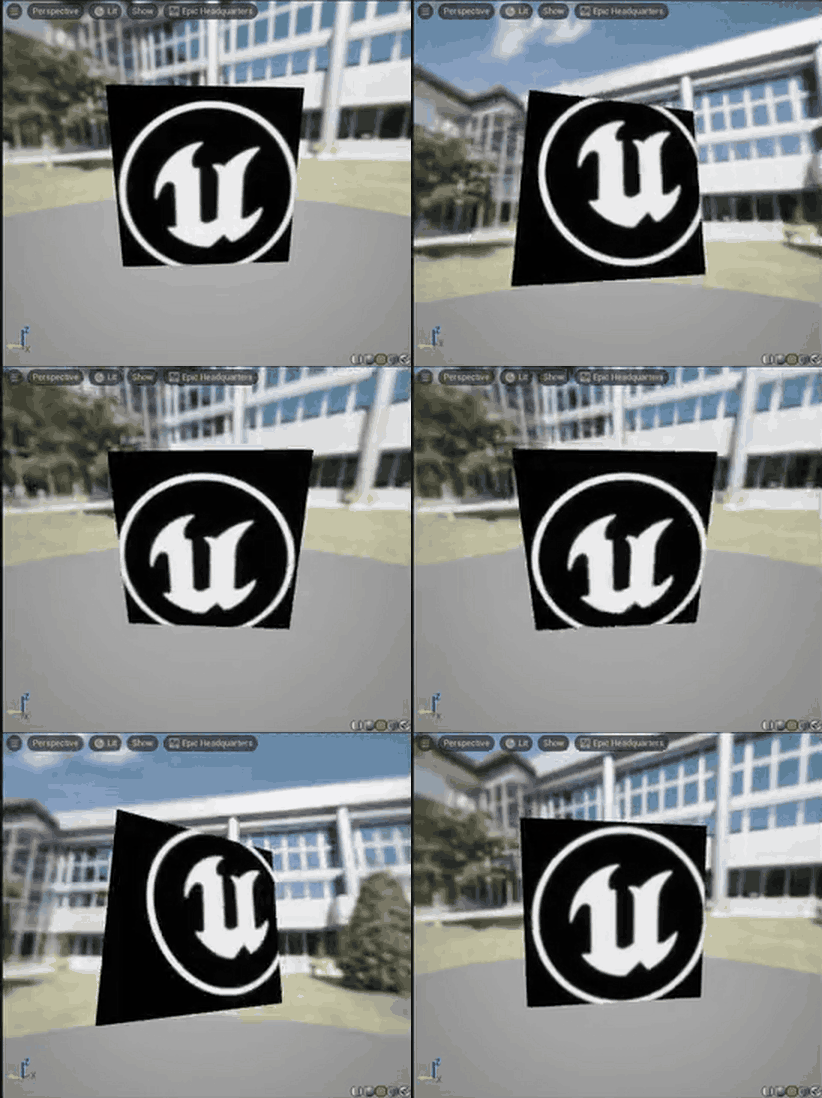
By the way, if you make the depth value in the Multiply positive (e.g. 0.1), the shift goes the other way, and the texture now looks like it pops out in front of the plane.
Just remember: “negative sinks in, positive pops out,” and you can choose whichever fits the look you’re going for!
Question: Why Do These Nodes Alone Create “Depth”?
So, we’ve successfully created a sense of depth. …But let’s stop and think for a moment.
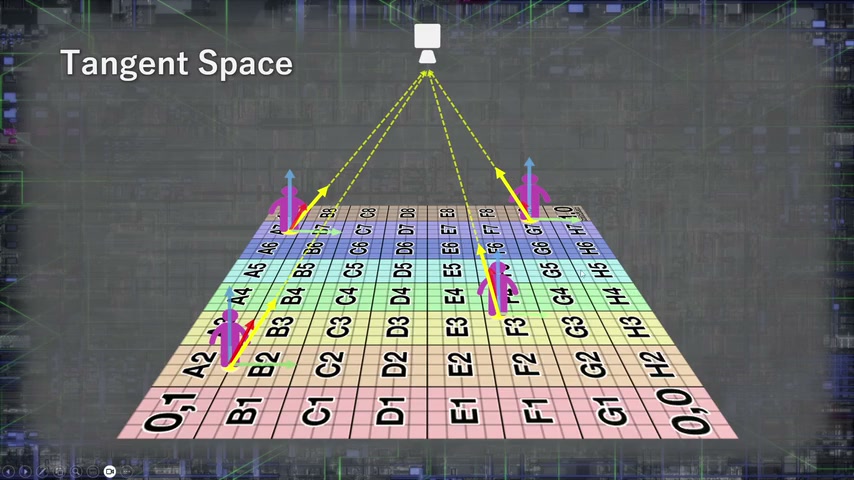
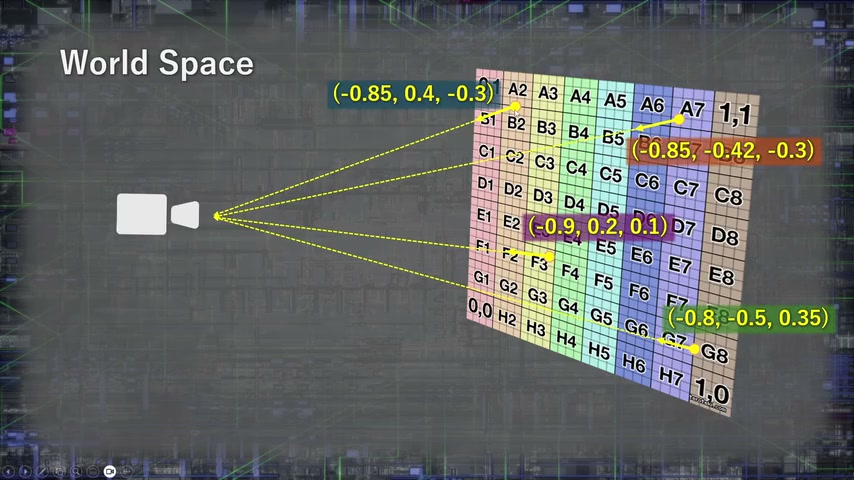
“Why does transforming the CameraVector into Tangent Space and adding it to the UVs make things look deep?” Could you explain that logic off the top of your head?
There are plenty of tips online saying “wire it up like this and you get Parallax Offset!”, but if you don’t understand the mathematical mechanics of spaces behind “why it works,” you won’t be able to adapt it when you really need to.
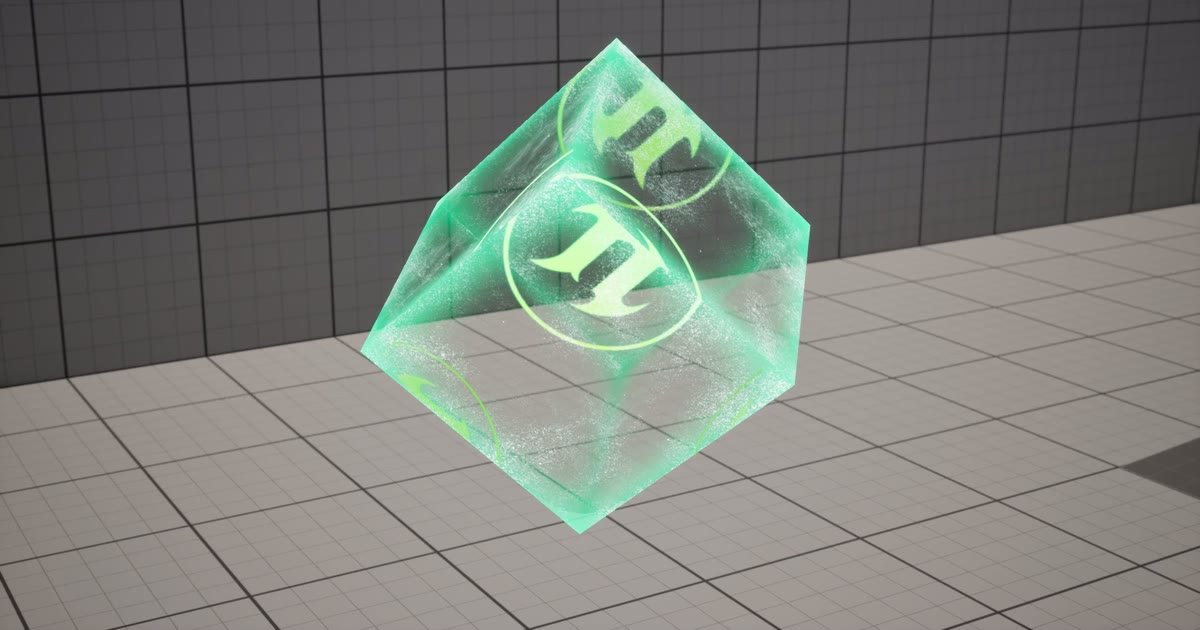
As a practical example using this technique, I also made a “3D hologram cube.”
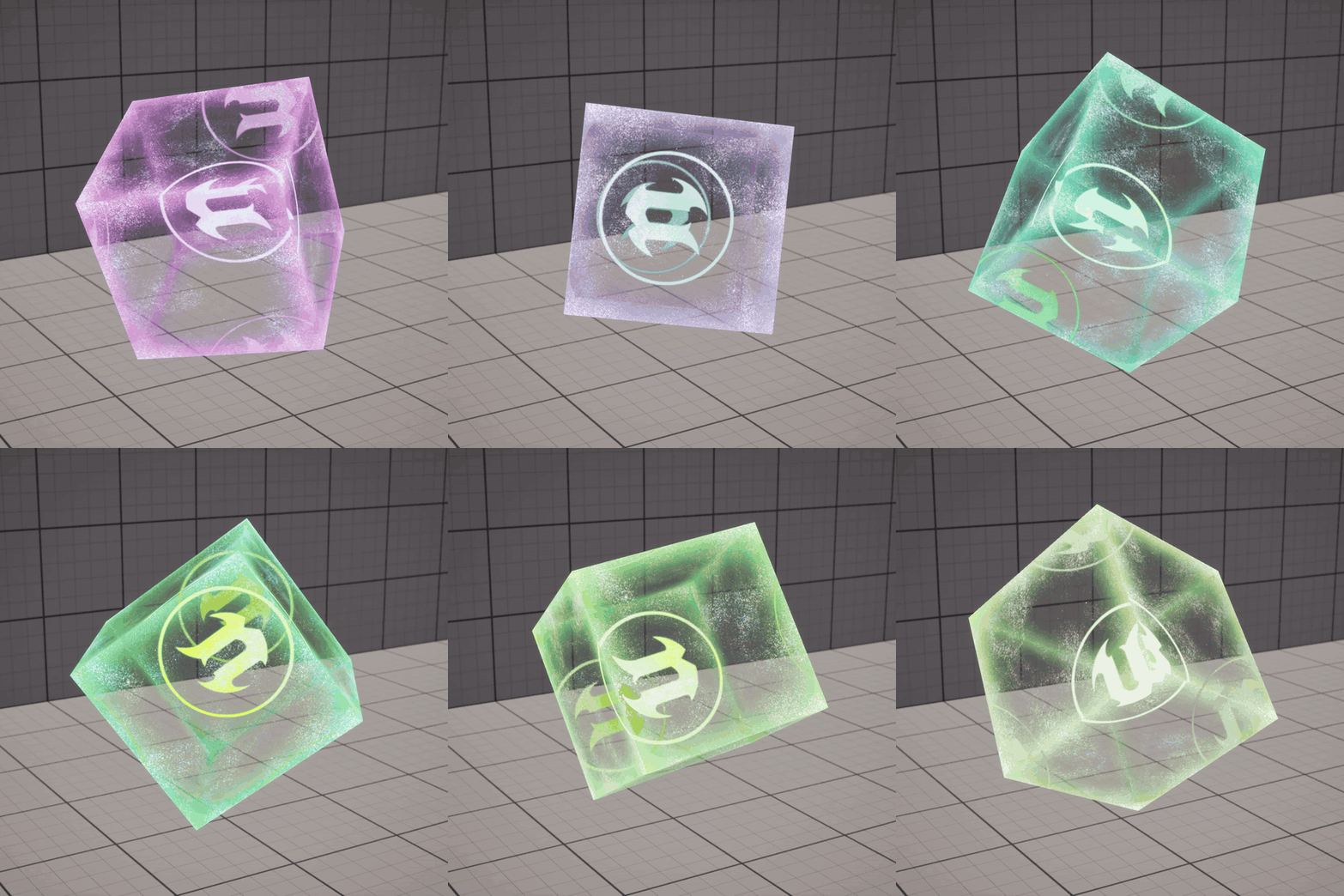
When you build something practical like this, you need a few extra tricks to push the quality higher, and you’ll run into walls such as “the draw-order problem unique to translucent materials.”
If you build a box and apply this material, the back faces get drawn on top of the front faces, and the 3D illusion instantly falls apart.
[Full Understanding] For Those Who Want to Learn Everything, from Theory to Production-Ready Work!
“I don’t just want to wire up Parallax Offset nodes—I want to really understand the theory of space transformation behind it (the Why)!”
“I want to solve the draw-order problem and finish a high-quality piece!”
If that sounds like you, my online course on Coloso covers Parallax Offset in depth, from the theory all the way to practical finishing!
🔽 Coloso course: Mastering the Mechanics of Advanced Niagara & Material VFX
https://coloso.global/en/products/vfxartist-heyyo-us
(The content of this article is covered in detail in Lessons 25 and 26 of the course.)
In the course, I carefully explain the math I skipped here—”what’s actually happening when you transform from World Space to Tangent Space?”—with diagrams.
You’ll also learn the full process of cleanly solving the translucent draw-order bug that appears when applying this to a cube, using advanced Custom Depth techniques, and polishing it into a final high-quality effect.
For Those Who “Just Want the Finished Data, Fast!”
“I don’t have time to sit through a whole course!” “I just want the finished, fully bug-fixed hologram cube data to use in my own project right away!”
For anyone in that camp, I also sell the project data on its own on Gumroad.
🔽 Gumroad: Project Data
https://heyyohanashima.gumroad.com/l/zrgie
Once you move past memorizing “how to connect the nodes” and understand the logic of “why it works,” material creation becomes so much more fun.
If you want to take your range of expression up a notch, I hope you’ll unlock the secrets of this magic through the course or the project data!