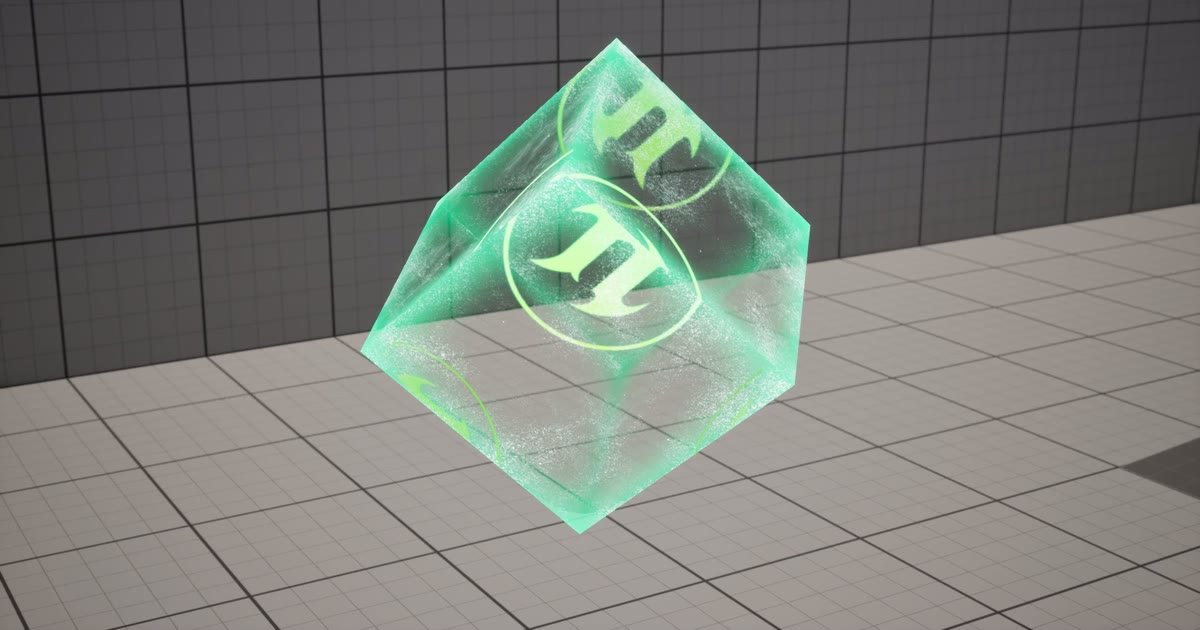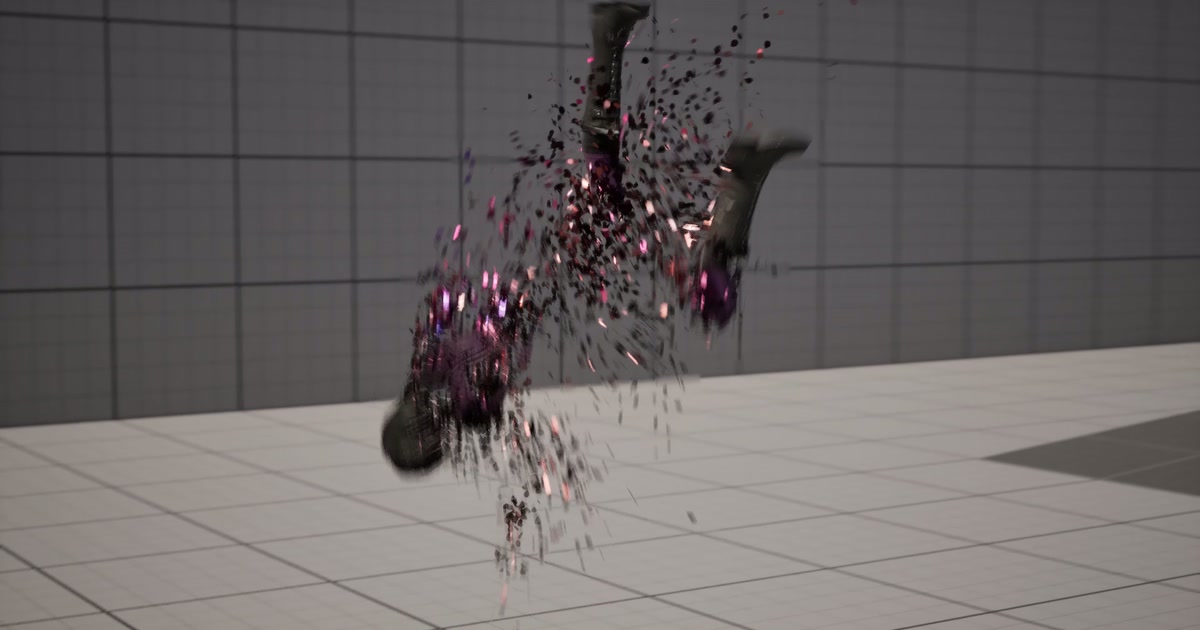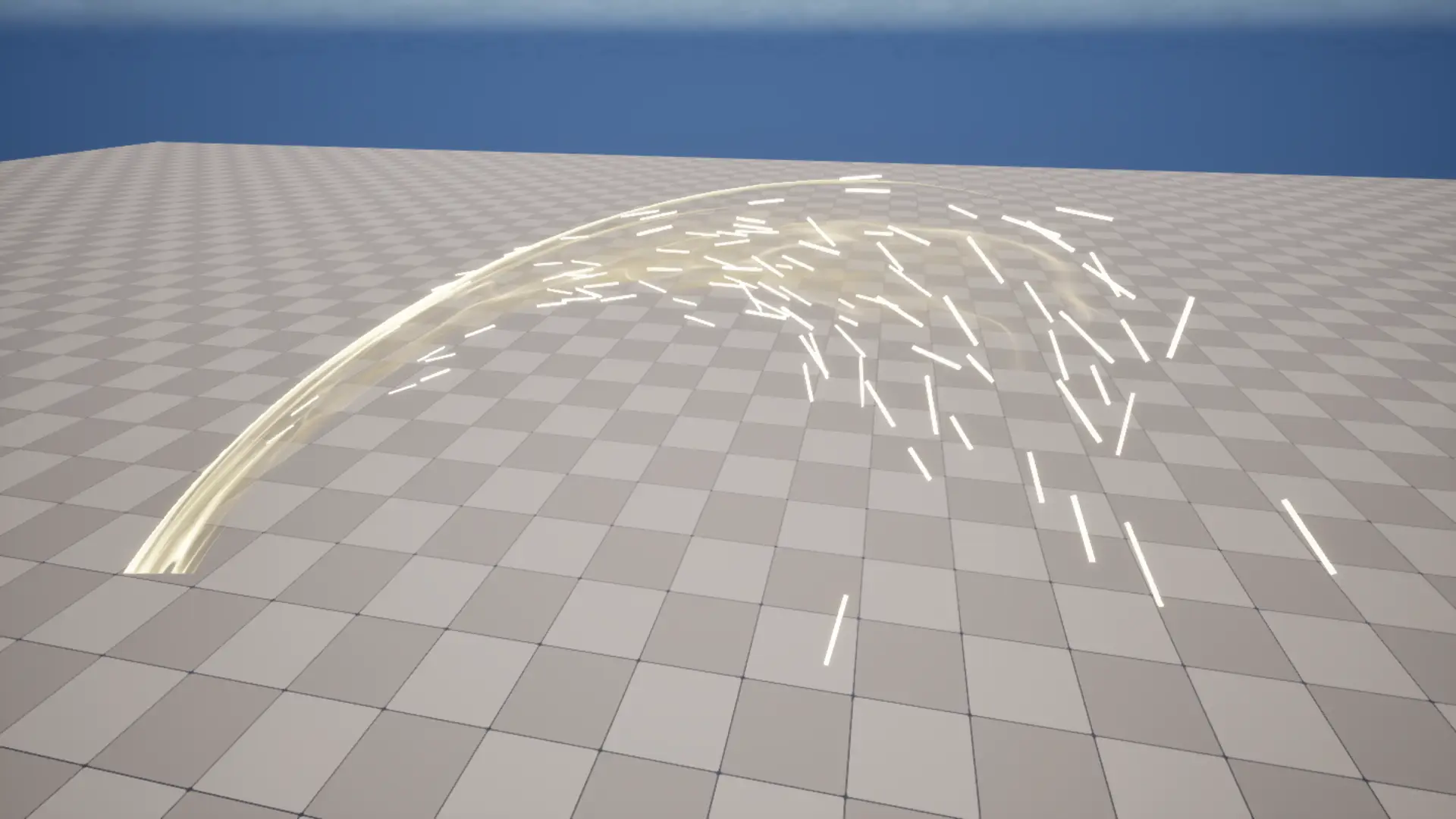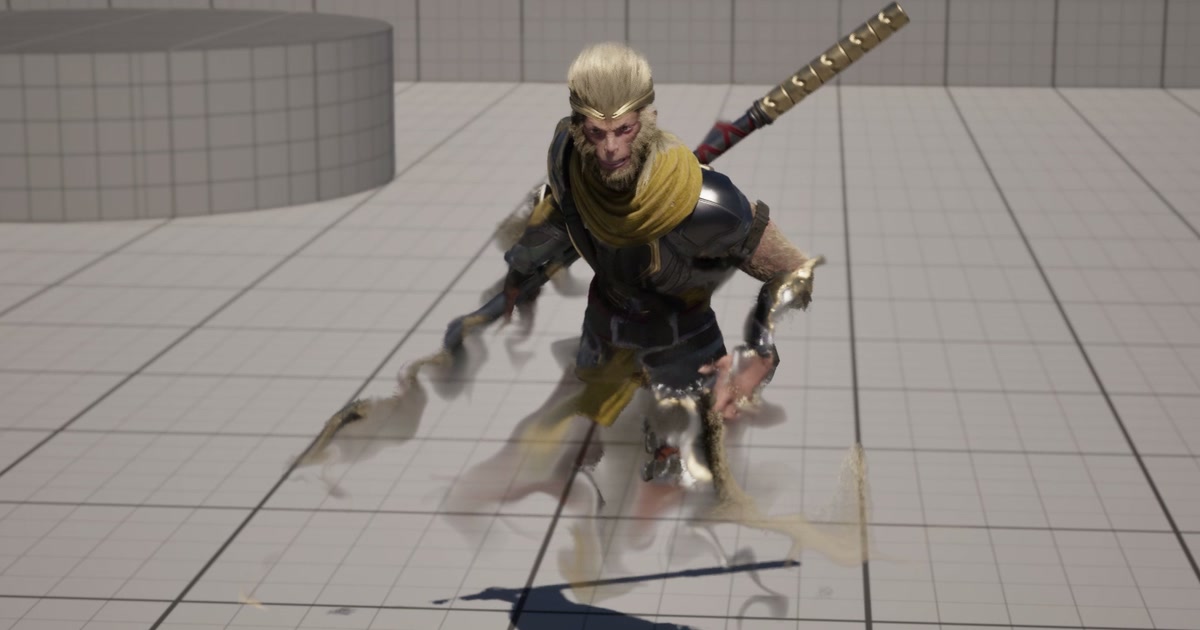
Once you get a bit comfortable making effects, there’s one kind of expression everyone wants to try at least once: fluid.
Magic where a silhouette ripples and flows like liquid, or a character who collapses and drifts away like smoke… Have you ever looked at rich, organic effects like these and thought, “I want to make that for my own game!”?
The trouble is, the moment you actually try to build a fluid simulation, you tend to run straight into a big wall: the technical hurdles, and above all, the performance cost.
In this article, aimed at anyone who wants to take their effects up a level, I’ll explain the idea of a game-friendly “pseudo-fluid,” and the mechanism at its core: advection.
Real-Time Fluids Today, and the “Pseudo-Fluid” Option
In the Unreal Engine world, there are more and more great features and tools for running full-blown fluid simulation in real time inside UE, such as Epic’s official Niagara Fluids plugin and FluidNinja Live.
With these, you really can create high-quality fluids in UE. It’s exciting to realize that fluids now run in real time!
But once you try to put them into an actual game, the story changes a little.
Running a proper grid-based fluid dynamics simulation in real time is still very expensive on the GPU, and it eats up a lot of memory at the same time. For games targeting high-end PCs or current-gen consoles like the PS5, that can be fine. But if you also need to support more modest hardware, such as typical PCs, it’s not something you can casually spawn whenever you like.
That’s where the approach in this article comes in: compared with true 3D fluid processing, it keeps the cost down while still producing something that looks convincingly fluid.
It relies on two tricks:
- Compute in 2D space (a texture), not 3D space
First, we write the character’s current appearance (its color and a silhouette mask) into a render target as a 2D image. Then we apply the fluid processing to that 2D image, much like a post-process. - Use curl noise instead of heavy physics
Instead of rigorously computing the fluid’s complex velocity, we use Niagara’s Sample Noise Field (curl noise). The swirling curl-noise vectors stand in for “the direction and speed of the flow.”
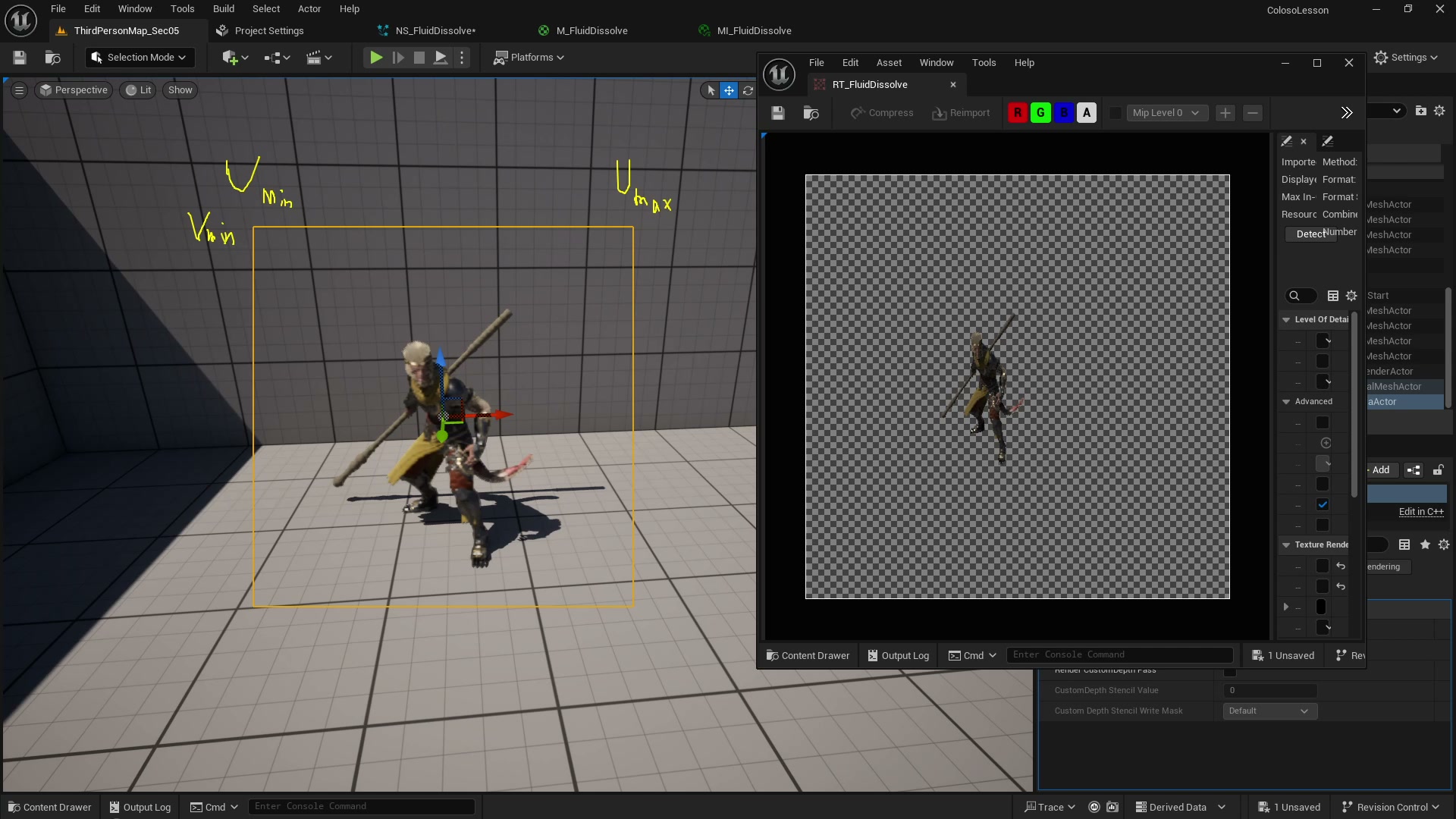
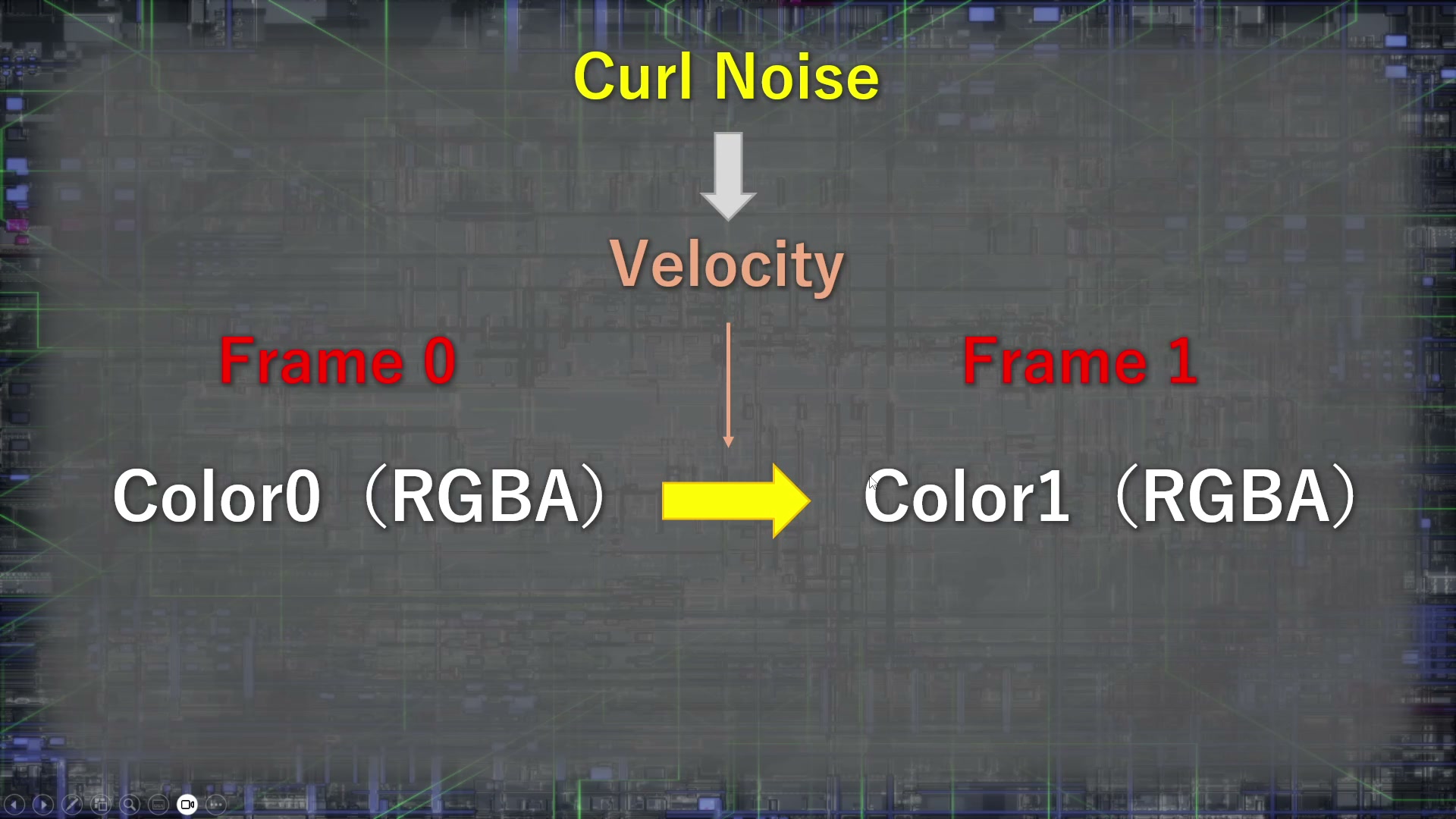
This greatly reduces both the performance cost and the memory usage. So how do we use that noise to make the image distort in a fluid-like way?
The Heart of Fluids: Understanding Advection
In fluid simulation, the way water or ink is carried along by the flow is called advection. This is the highlight of the whole article!
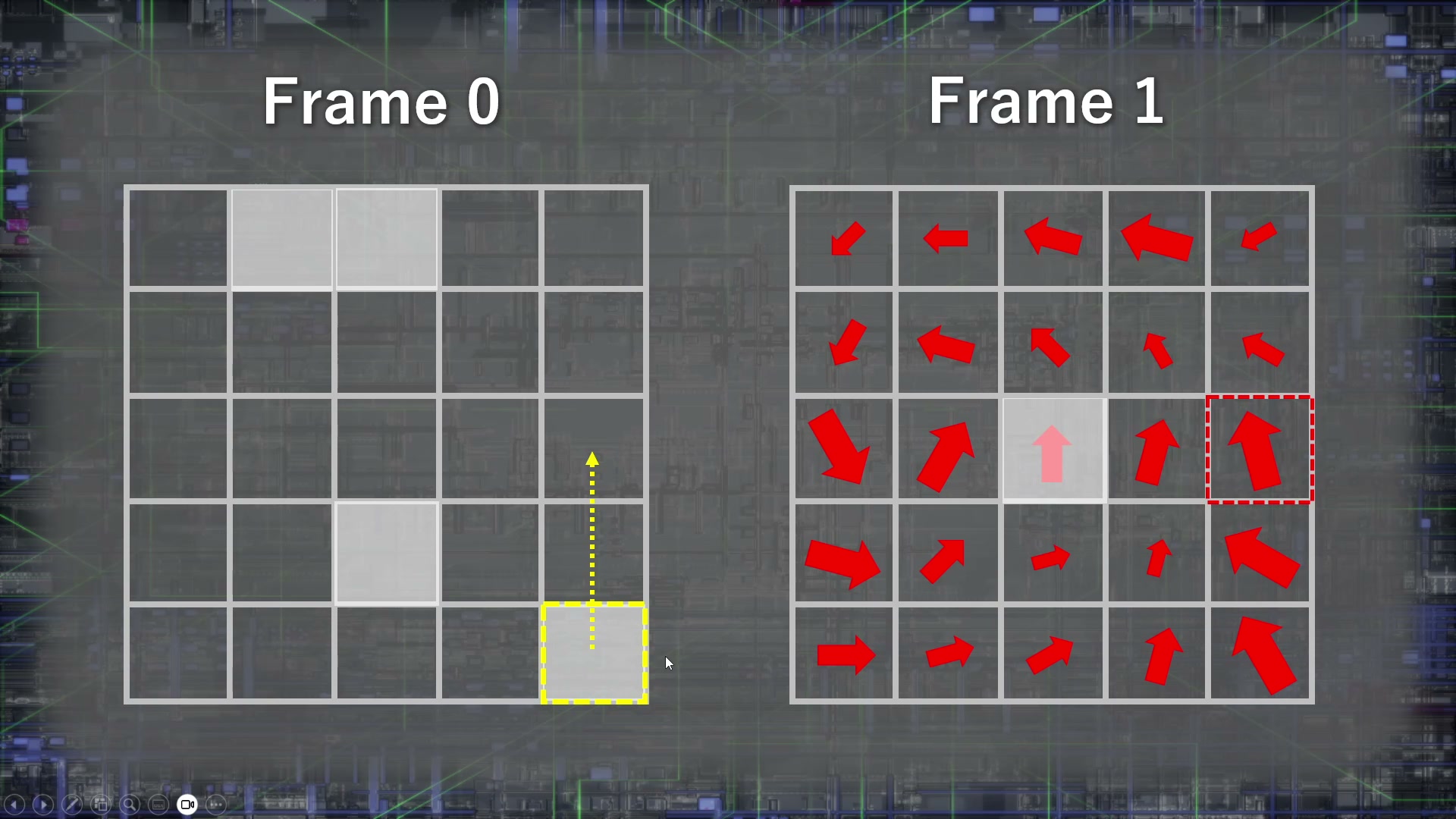
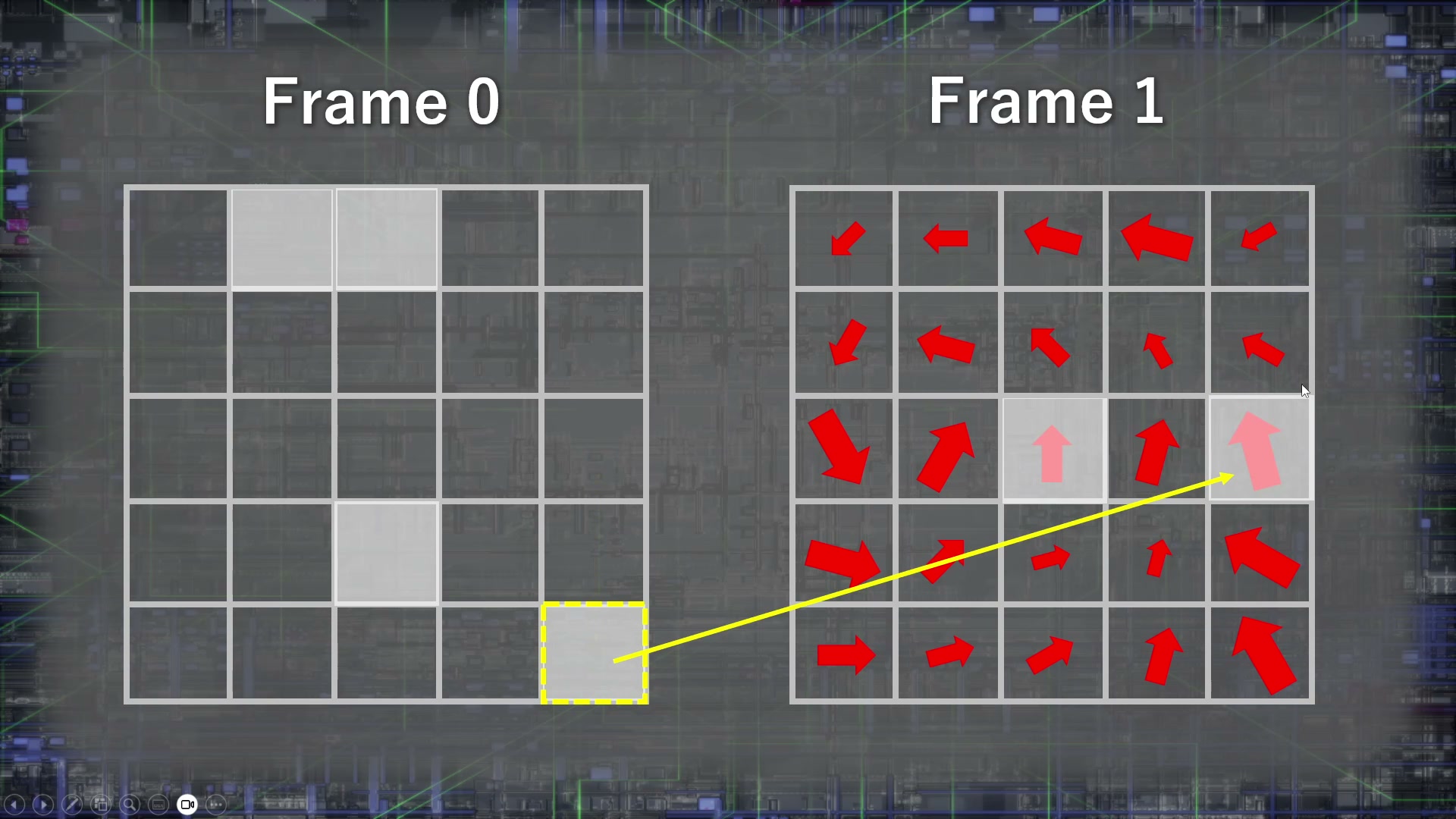
Backward tracking: work out not “where the color flows to,” but “where it flowed from”
Say we want to decide the color of a cell in the current frame.
The intuitive way to think about it is “push the color at this spot along the direction of the noise.” Fluid simulation, however, does the opposite.
“Using the velocity (the noise) flowing through your current position, work backward to find where the color came from one frame ago, and take that color.”
This is called backward tracking.
- Get the flow velocity at the cell you’re in (the direction and strength of the curl noise).
- Extend a line in the opposite direction of that velocity to calculate the position one frame ago.
- Read the color and mask at that previous-frame position, and write them into your current cell (advect them).
Repeat this for every cell on the screen, every frame, and the character’s colors get pulled into the swirls of the noise and warp beautifully, giving you a gorgeous fluid effect!
From Theory to Implementation: Key Points for Building It in Niagara
Do you have a rough picture now of what “backward tracking” means, and of “taking the color from one frame ago”?
Of course, it’s hard to feel like you fully get it from text and diagrams alone. Fluids work in a slightly unusual way.
On top of that, when you actually try to build this in Niagara, there’s one more hurdle to clear.
This kind of processing can’t really be built with the usual features for spawning and updating particles (such as Particle Update) alone.
To run this calculation inside Niagara, you’ll use two features: Simulation Stages and the Grid 2D Collection.
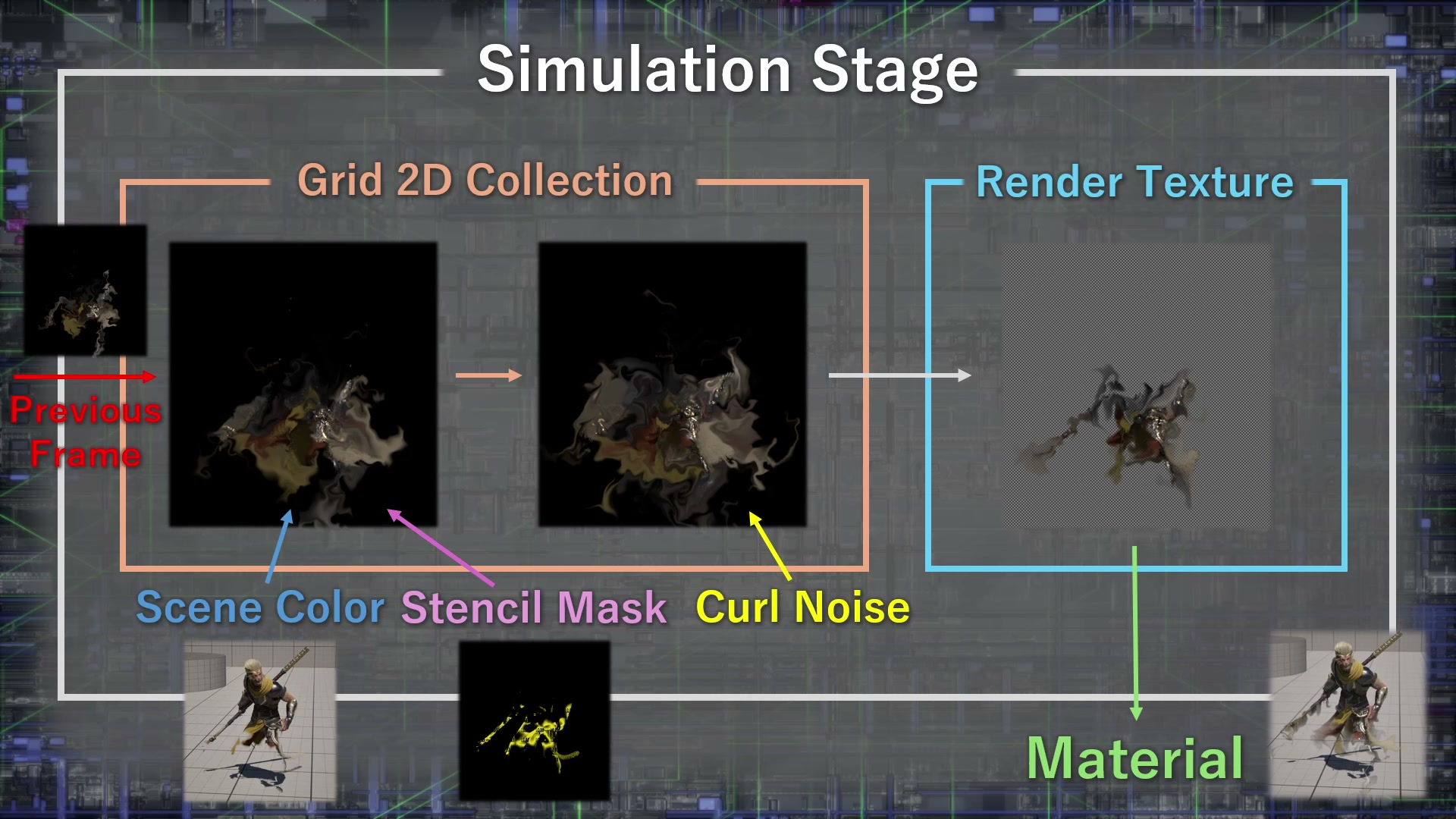
- How do you accurately write the character’s appearance into a 2D grid?
- How do you use Simulation Stages to run per-pixel processing?
- How do you calculate screen UV coordinates so everything lines up?
Turning the theory into actual node setups means digging into some of Niagara’s more advanced features.
If You Want to Learn the Implementation from Scratch
If this article made you think, “I want to be able to build this pseudo-fluid system with my own hands!” or “I want to master Simulation Stages and Grid 2D!”…
I walk through the implementation step by step in my online course on Coloso, so feel free to check it out!
🔽 Coloso course: Mastering the Mechanics of Advanced Niagara & Material VFX
https://coloso.global/en/products/vfxartist-heyyo-us
(The fluid dissolve covered in this article is taught hands-on, from the basics, across Lessons 12–15 of the course.)
Building on the concept of advection from this article, the course covers calculating screen UVs, masking with stencils, updating data in a Grid 2D Collection, and more, checking together, one step at a time, why you connect each node the way you do.
The finished project data is included too, so you’re covered if you get stuck along the way.
Just Want to Look Inside the Finished Project?
“I don’t have time to sit through a whole course!” “I want to drop the finished system straight into my own project!” “If I can see the data, I can figure it out myself!”
For anyone in that camp, I also sell the project data on its own on Gumroad.
🔽 Gumroad: Dissolve Effect Project Data
https://heyyohanashima.gumroad.com/l/iwfkbz
If you want to go beyond simple effects and broaden your range, I hope you’ll explore this pseudo-fluid approach through the course or the project data!