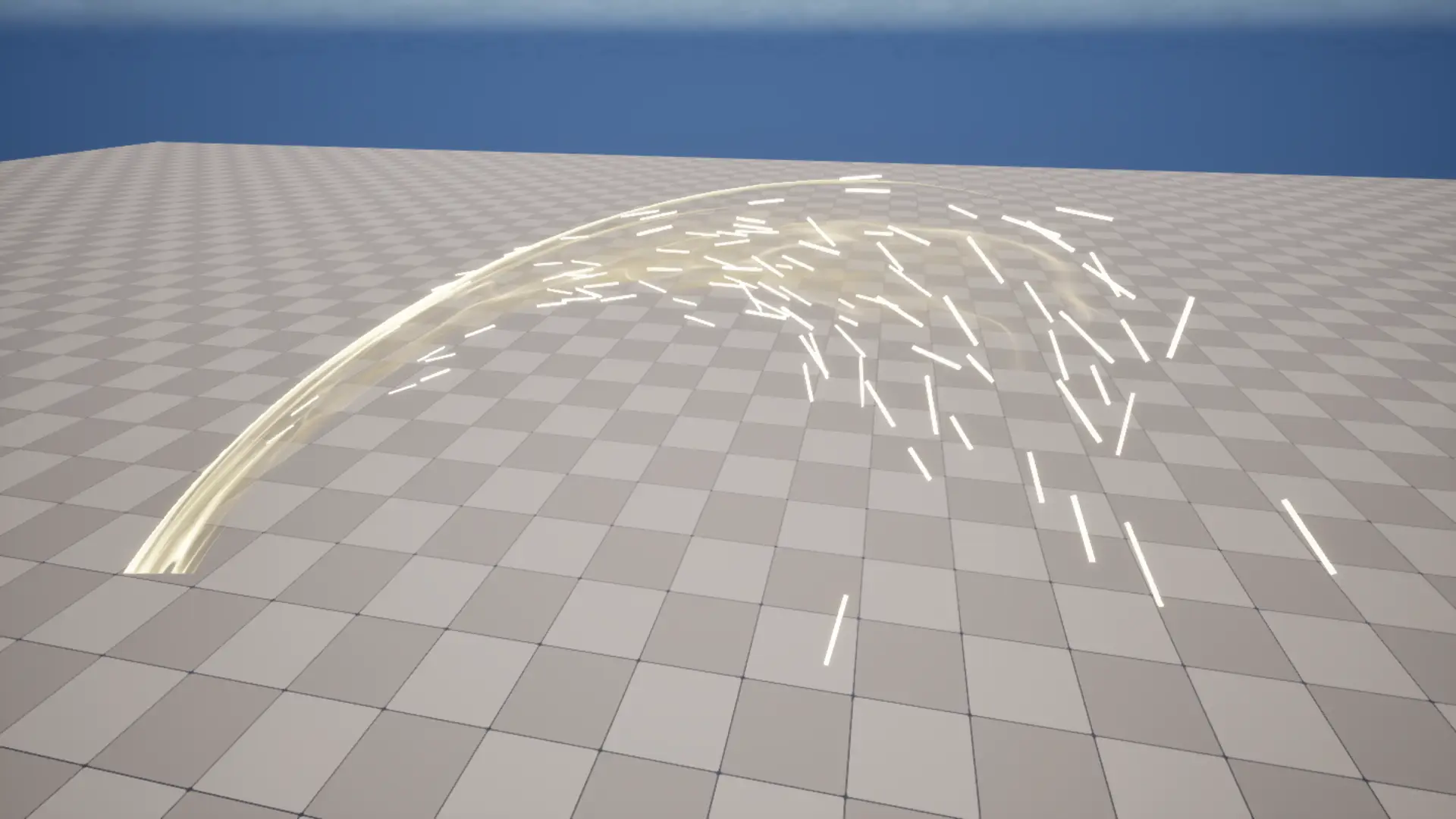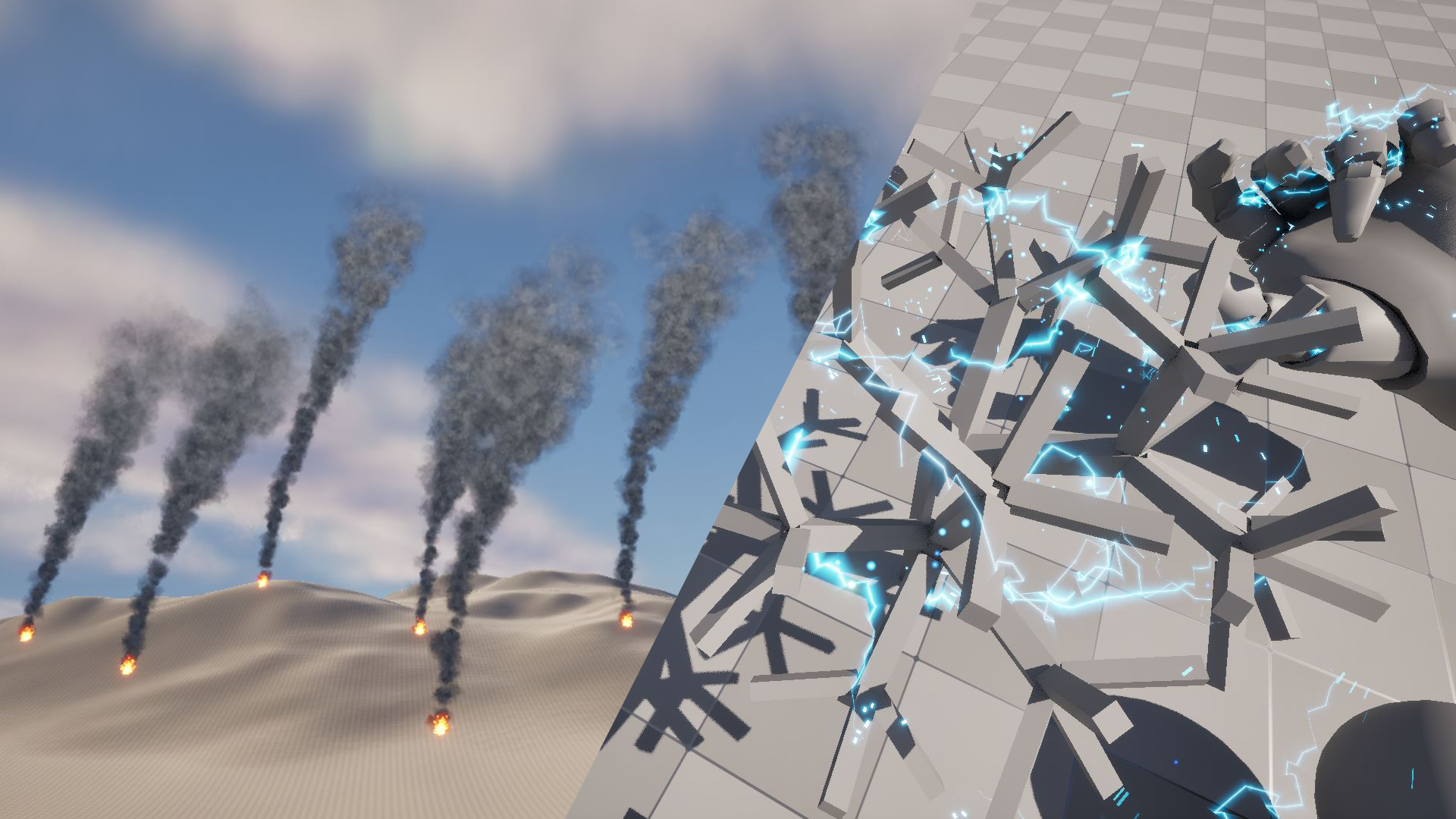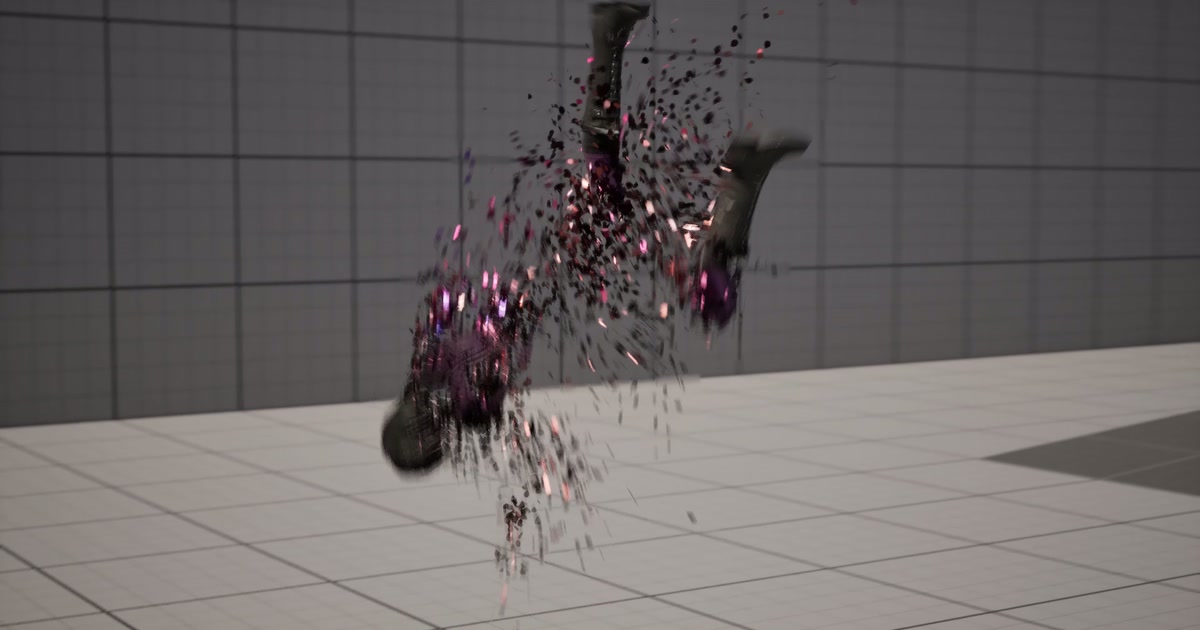
Hi there!
When you play games, you often see a “dissolve effect” where a character breaks apart into particles and disappears—like when an enemy is defeated. Don’t those make you want to build one yourself?
So how do you approach this when building it with Niagara in UE5?
My guess is that most of you reach for the easiest option: the Skeletal Mesh Location module.
It’s the go-to method, and it’s genuinely handy… but have you ever found yourself thinking, “Hmm, this doesn’t look as clean as I hoped”?
In this post, I’d like to share another tool for your VFX toolbox: a dissolve approach that uses Screen Space and a Stencil Mask.
Why Learn an Alternative to Skeletal Mesh Location?
Skeletal Mesh Location spawns particles directly from the surface of the character’s 3D model (its polygons).
It’s great for getting something up and running quickly, but it comes with a few weaknesses (and extra work):
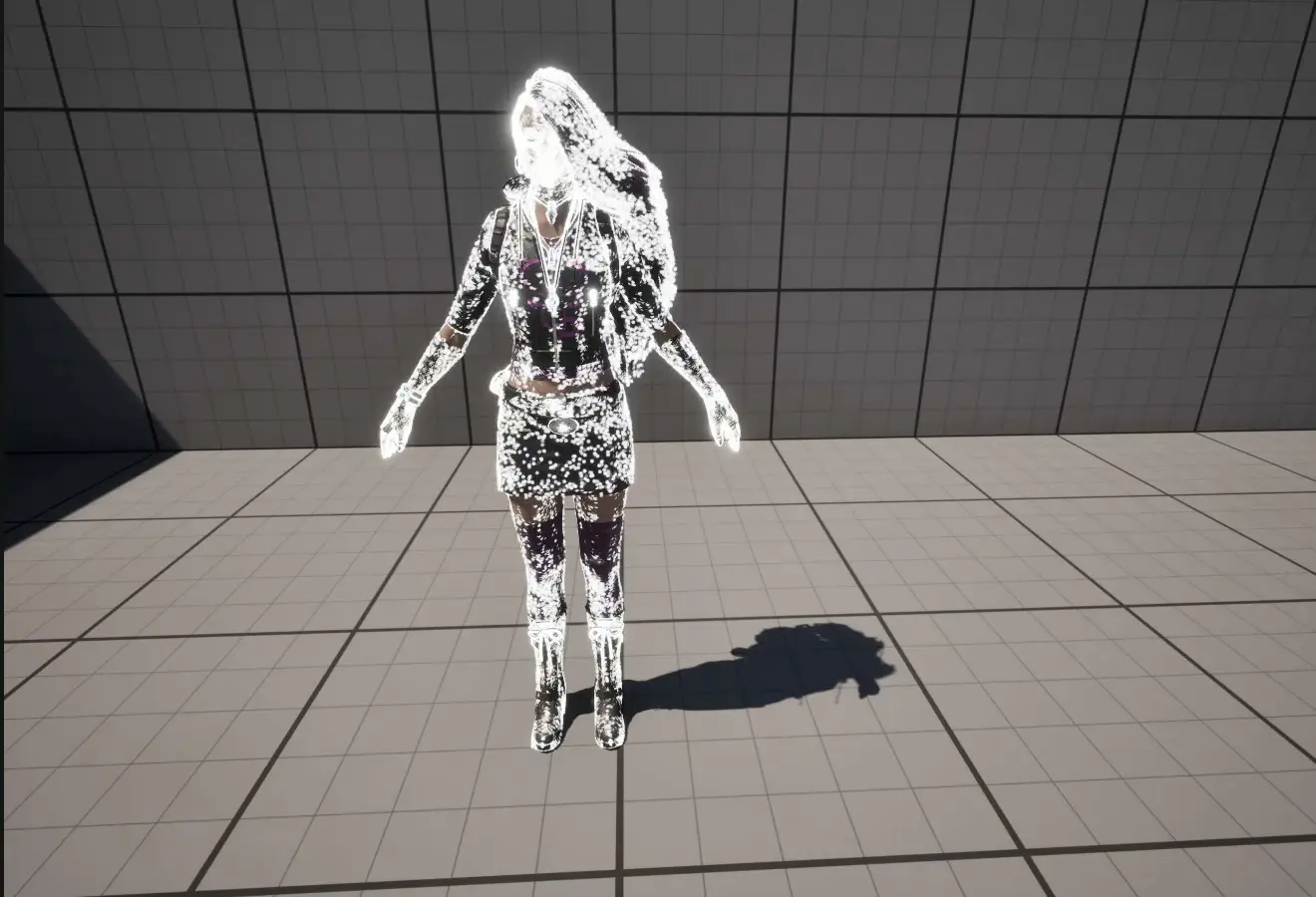
- The result depends on the mesh structure (polygon density)
Areas with dense polygons, like around the face, get thick with particles, while areas with fewer polygons, like the torso, end up looking empty. This makes the look hard to control. - You end up implementing the dissolve twice—once in Niagara too
To make a character fade away, it isn’t enough to dissolve it in the material. You also have to build logic on the Niagara side, such as “don’t spawn particles from parts that have already disappeared,” which adds to the implementation work.
“I want a cleaner, more even silhouette effect.” “I want to try a different approach.”
That’s where the technique I’m introducing today comes in.
A New Approach: Screen Space × Stencil Mask
The key idea is this: instead of spawning particles from the character’s model, spawn them across what the camera sees on screen, then cut them out in the shape of the character.
It breaks down into three main steps.
Step 1: Find the Character’s On-Screen Frame (Screen Bounds)
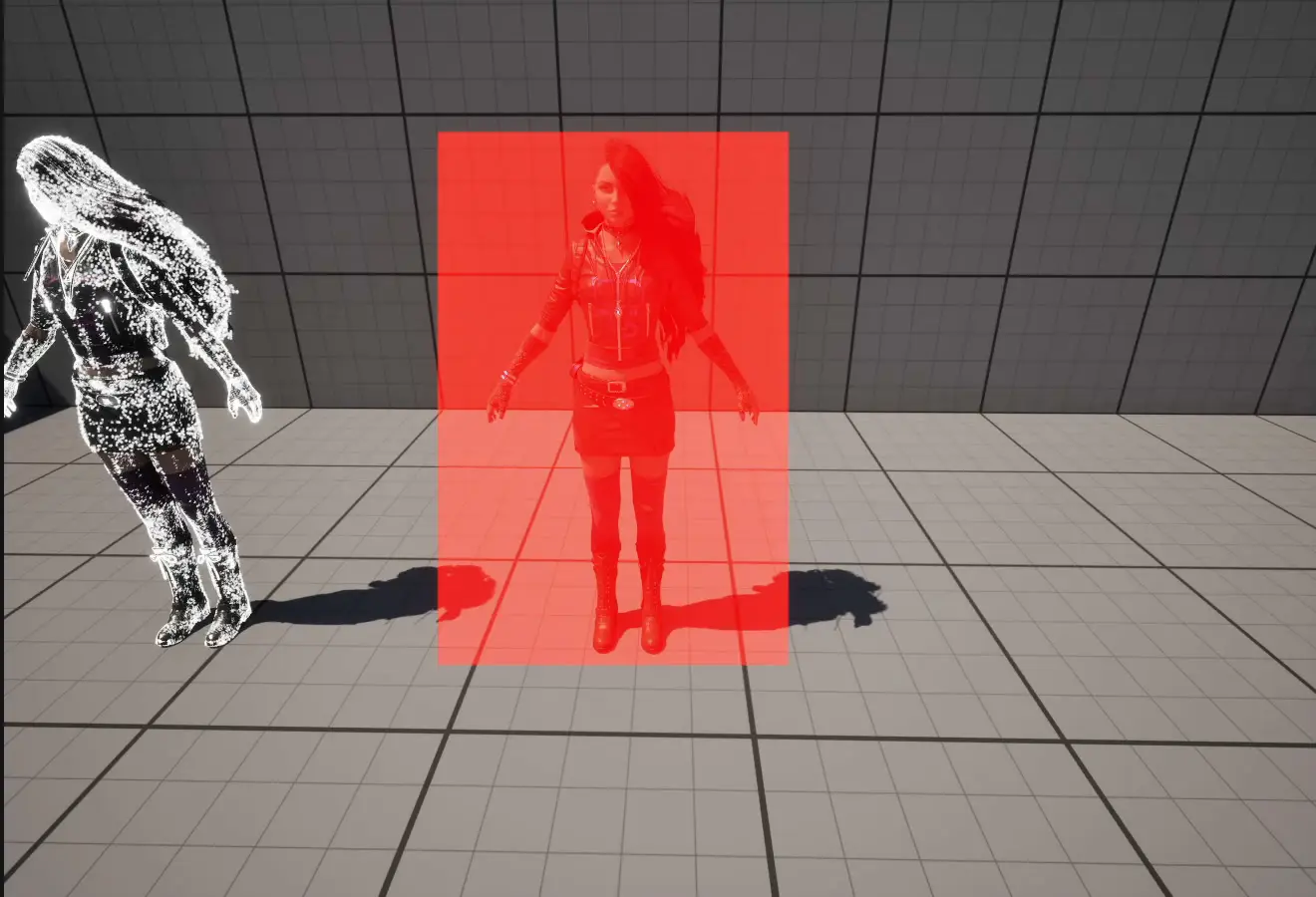
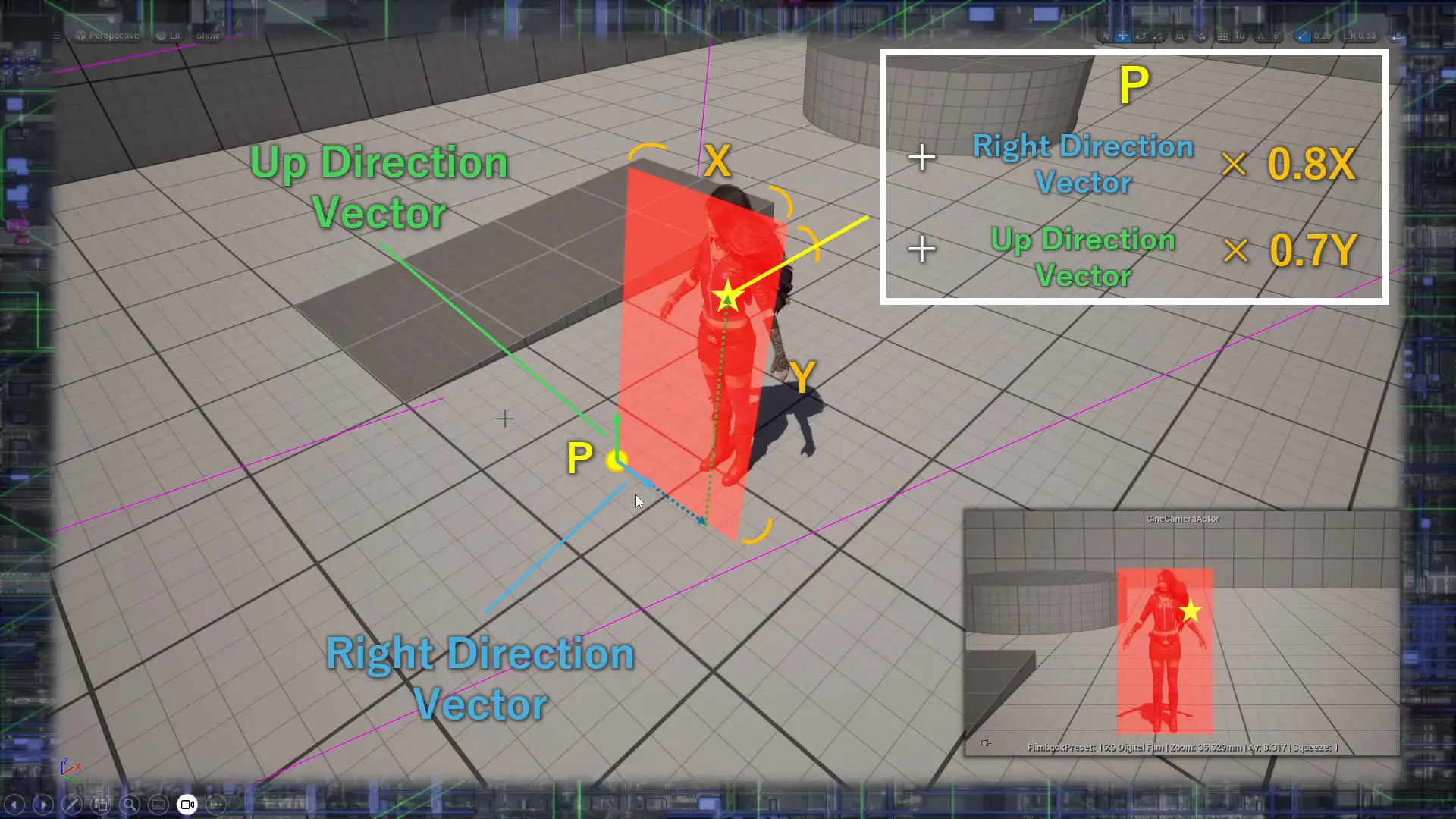
First, we convert 3D information into the 2D screen coordinates we see on our monitors (Screen Space). Then we calculate the rectangular frame (Screen Bounds) that tells us exactly where on the screen the character appears.
Step 2: Fill the Frame with Particles
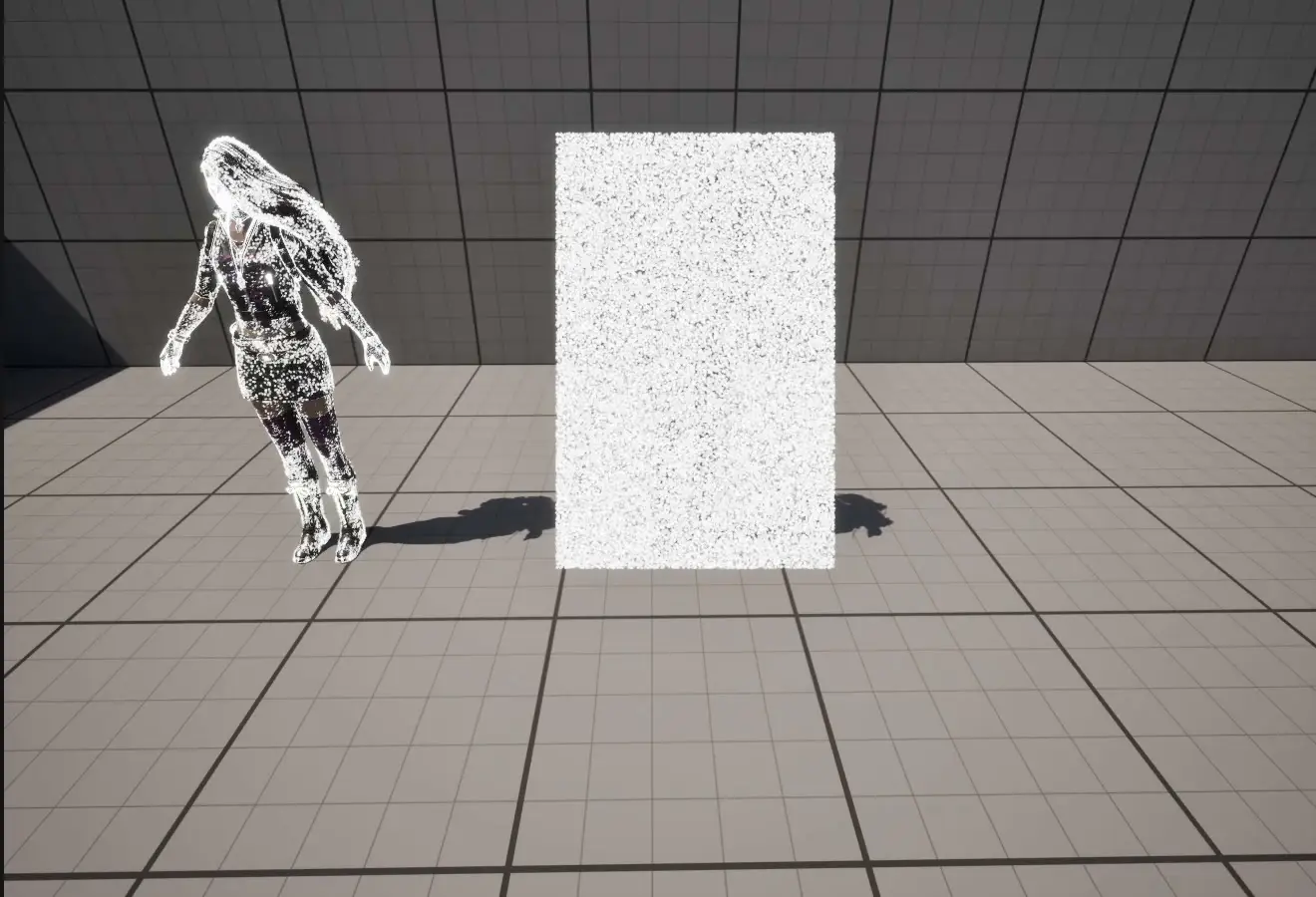
Next, we spawn particles inside the rectangular frame we just found. At this point, you have a “rectangular wall of particles” sitting in front of the character.
Step 3: Cut It Out with the Stencil (Custom Stencil)!
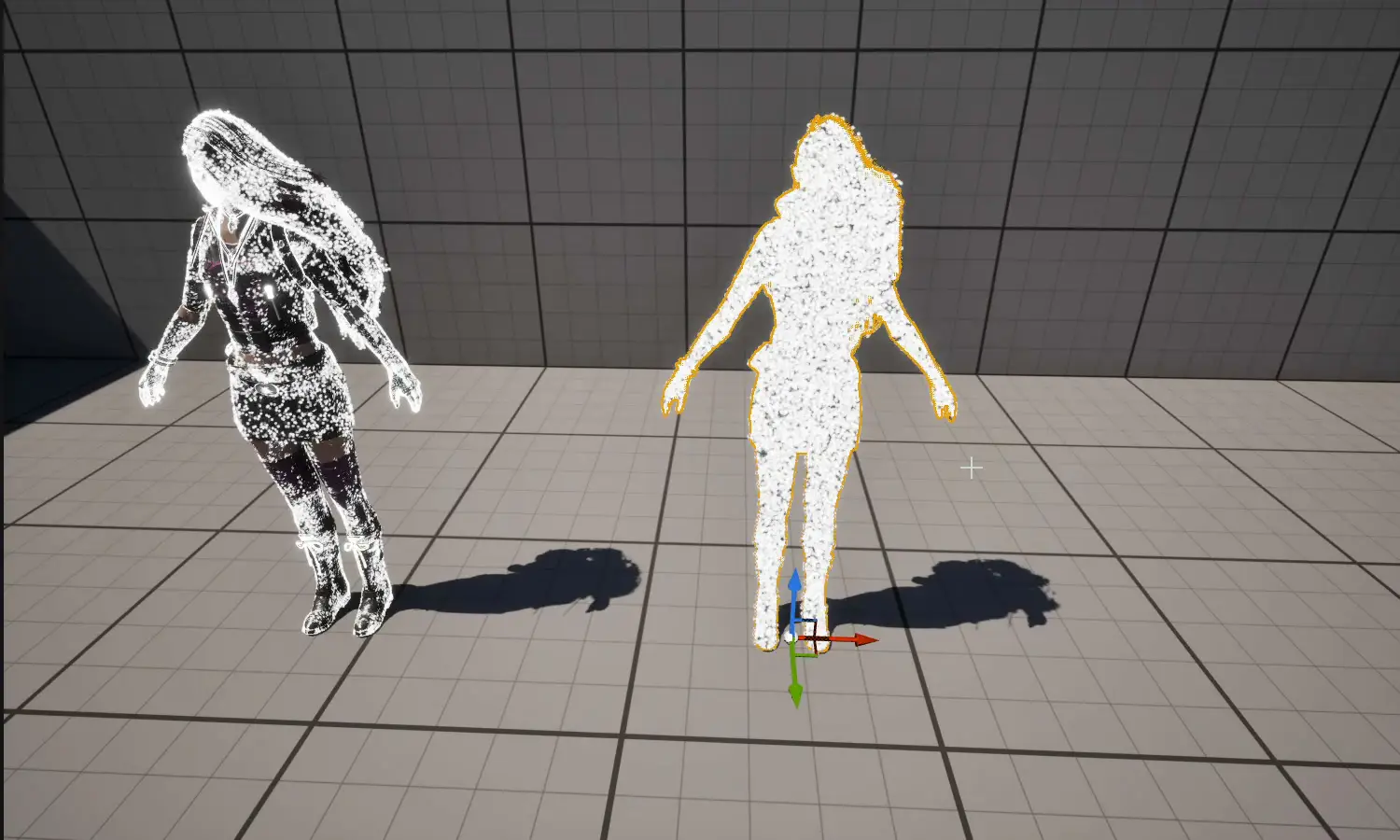
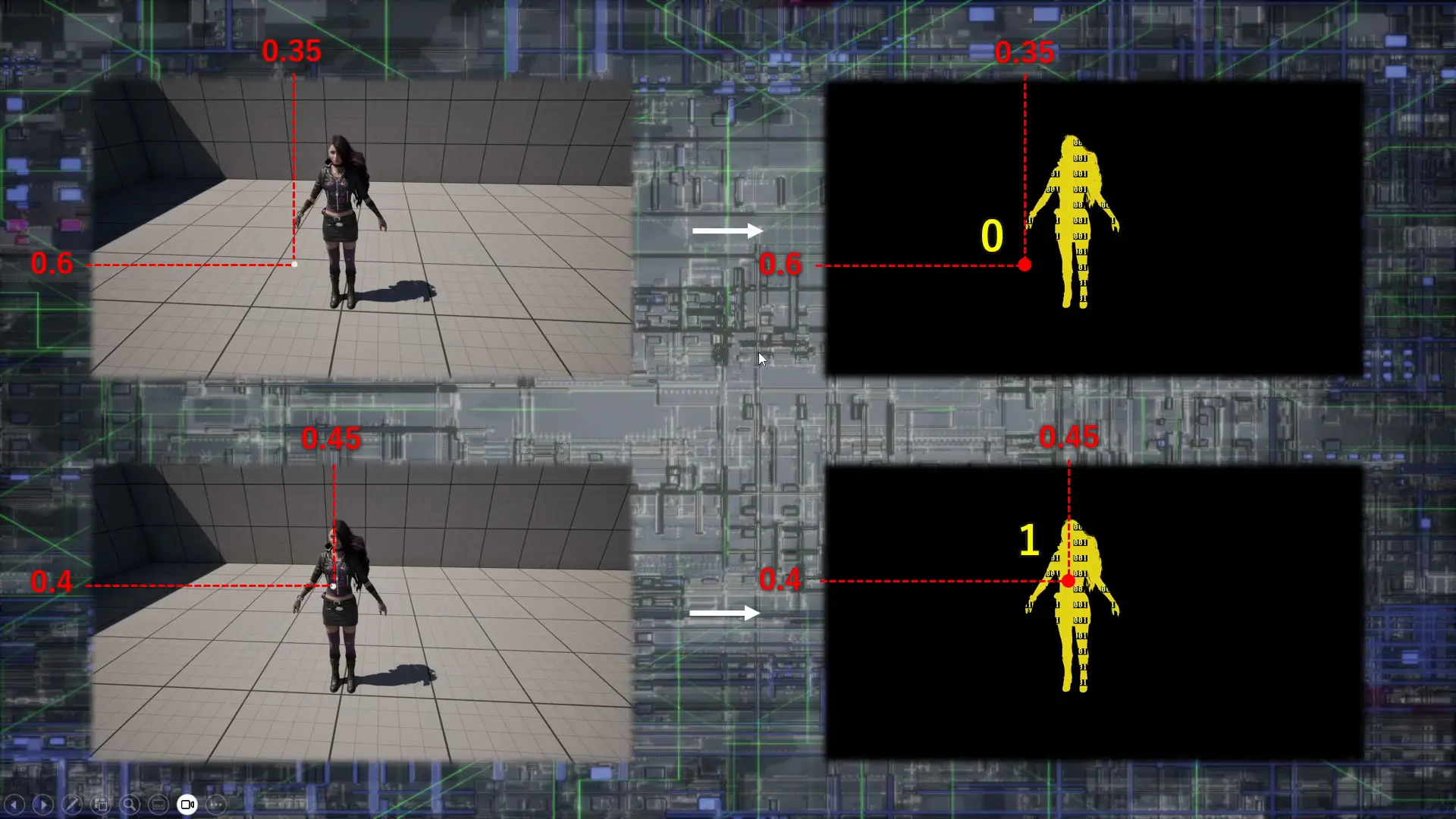
This is the most important part!
Using UE’s rendering feature, Custom Depth-Stencil, we assign the character’s model a “special number” (for example, 1).
Then, on the Niagara side, we keep only the particles where the on-screen value is 1 (that is, where the character is visible) and remove all the rest.
Think of it like pressing a character-shaped cookie cutter (Step 3) into a sheet of cookie dough (Step 2)—pop!
This lets you create a clean silhouette effect that isn’t affected by polygon density.
That Said, There’s a Small Hurdle to Implementing It…
If you’ve read this far, you might be thinking, “Oh, I didn’t know you could do it that way!”
But to be honest, when you actually try to build this in Niagara, you can’t make it just by dropping in existing modules.
You’ll need to open a Scratch Pad and build your own custom module.
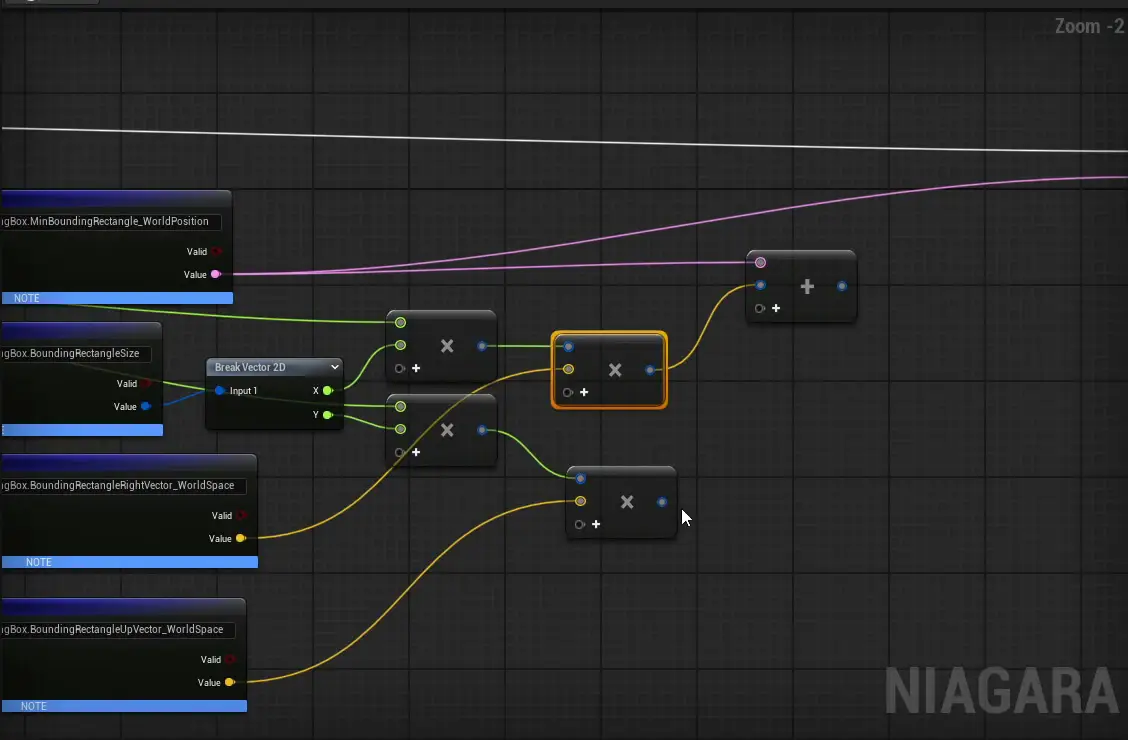
- Passing data with the
Particle Attribute Reader - Getting the camera’s forward vector and up vector
- Building the math to spread particles across the screen using UV coordinates and dot products
- Reading accurate depth and stencil values from the G-Buffer
…and so on. It takes a bit of math and a deeper knowledge of Niagara.
Hands-On: Want to Learn This System from Scratch?
“I get the theory, but how exactly do I wire up the nodes?”
“I want to really understand the vector math in Scratch Pad and be able to use it myself!”
If that sounds like you, I’ve released an online course on Coloso where you can learn how to build this screen-space-and-stencil dissolve effect from scratch, step by step, working alongside me!
Coloso course: Mastering the Mechanics of Advanced Niagara & Material VFX
https://coloso.global/en/products/vfxartist-heyyo-us
Building on the theory covered in this post, the course doesn’t just have you copy nodes—it carefully explains why each calculation is needed, starting from the basics.
And of course, the finished project data used in this post is included with the course, so you can learn while working with the actual data!
Just Want the Data, Fast?
“I don’t have time to sit through a whole course…”
“I want to use the finished system in my own project right away!”
“I want to take the data apart and see how it works myself!”
For you, the project data is also available on its own on Gumroad.
🔽 Gumroad: Dissolve Effect Project Data
https://heyyohanashima.gumroad.com/l/lvmte
Once you master this “silhouette cutout” technique, it opens up far more than dissolve effects— like hologram effects and much more in Niagara!
If you want to expand your toolbox beyond Skeletal Mesh Location, give it a try through the course or the project data!